
Importing LOs into Canvas Course Guide
Guide for Importing BGP Domain Learning Outcomes (LOs) Into a Canvas Course Shell and Linking LOs to an Existing Grading Rubric, Assignment, or Quiz
If you want to import the BGP domain learning outcomes (LOs) into your BGP course shell, you can use this guide. Please note, there are BGP course templates that already have the domain LOs imported you can use. You may want to import the BGP domain LOs directly into your course if you want to link them to an existing grading rubric, assignment, or quiz.
Importing BGP Learning Outcomes (LOs)
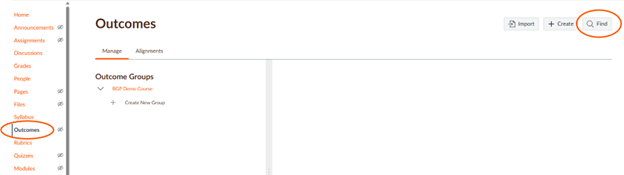
- Go to your Canvas BGP course shell. Click on “Outcomes” on the left menu.
- Click on “Find” at the top right.
- A new screen will appear. Click on “Account Standards.”
- Click on “BGSU-ACAD.”
- Click on “-BGP.”
- Select the BGSU domain for your course. This guide uses English Composition & Oral Communication as an example.
- Select “+Add” for each of the domain LOs you need. Once they have been added they will show “+Added.”
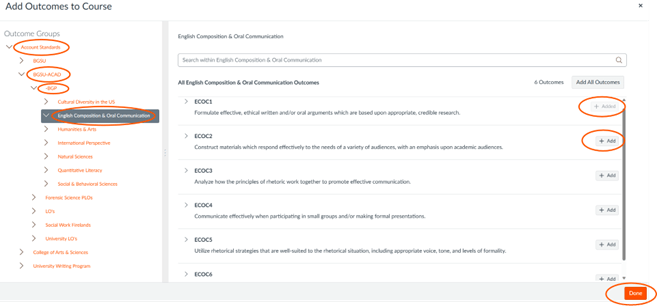
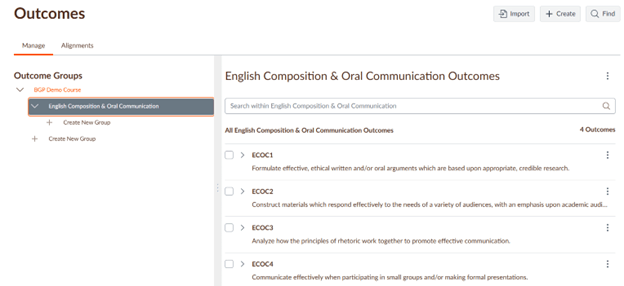
- Click on the “Done” button. The LOs will show in your Outcome Groups.
Linking Learning Outcomes (LOs) to an Existing Grading Rubric within an Assignment
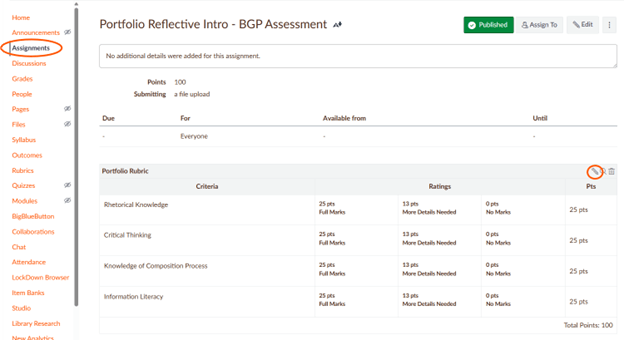
- After the BGP domain LOs are imported, go to “Assignments” and select the assignment in which you want to add the LOs to the existing grading rubric.
- Click on the edit rubric pencil at the top right corner of the existing rubric.
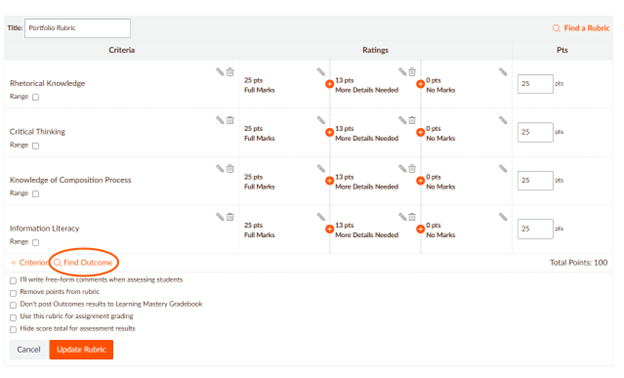
- Click on “Find Outcome.”
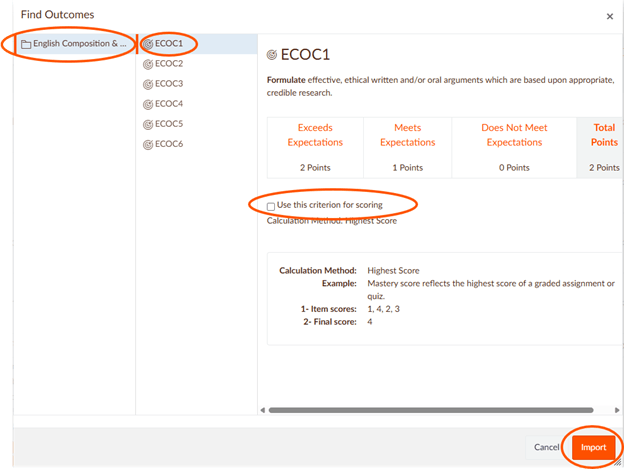
- Click on the BGP domain LO folder. (In this example, it is English Composition & Oral Communication). The domain LOs will appear.
- Select the domain LOs you want to include, one at a time.
- When a domain LO is selected, uncheck “Use this criterion for scoring.” By unchecking this box, the ratings will be used solely for assessment purposes and the points will not be assigned.
- Repeat steps 5 and 6 for all the domain LOs you want to include in the existing grading rubric.
- Click on “Import.”
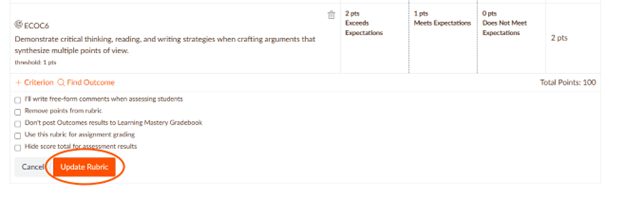
- Click on the “Update Rubric” button.
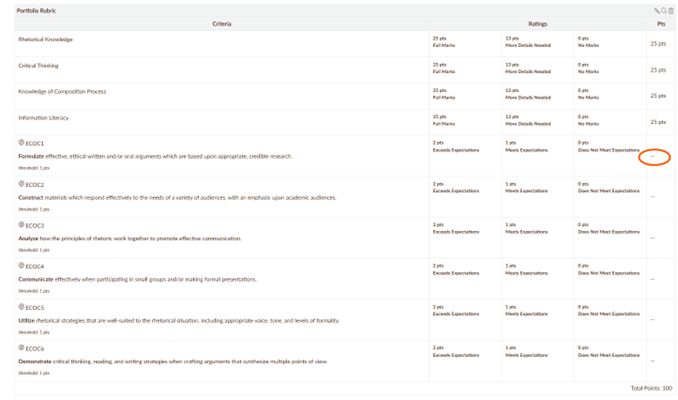
- You now have a combined grading and assessment rubric.
*There are no points associated with the BGP domain LOs. Also, the assessment will not work if you have “I’ll write free-form comments” selected in your rubric because that feature removed the rating scales.
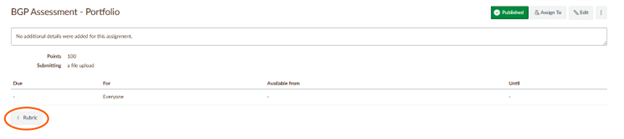
- Give the rubric a title.
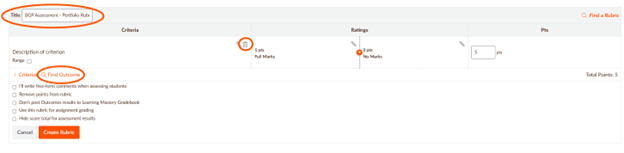
- Click on the trash can icon for the provided, sample criterion in the first row.
- Select “Find Outcome.”
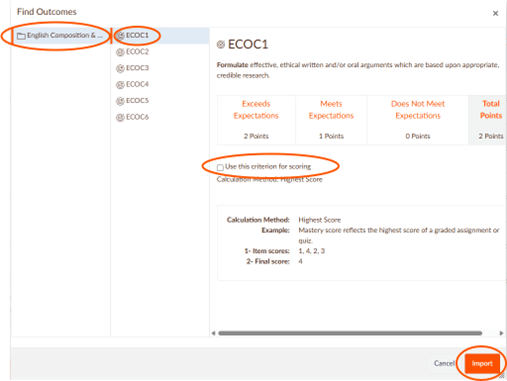
- Click on the BGP domain LO folder. (In this assignment example, it is English Composition & Oral Communication). The domain LOs will appear.
- Select the domain LOs you want to include, one at a time.
- When a domain LO is selected, uncheck “Use this criterion for scoring.” By unchecking this box, the ratings will be used solely for assessment purposes and the points will not be assigned.
- Repeat steps 7 and 8 for all the domain LOs you want to include in the existing grading rubric.
- Click on “Import.”
- Click on the “Create Rubric” button.
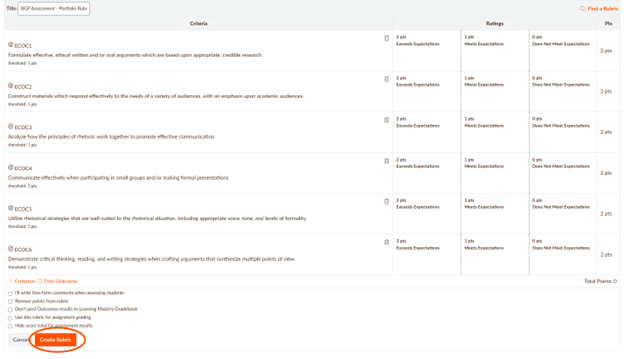
- You now have an assessment rubric.
*There are no points associated with the BGP domain LOs.
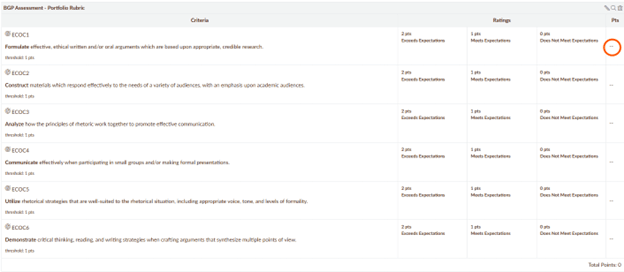
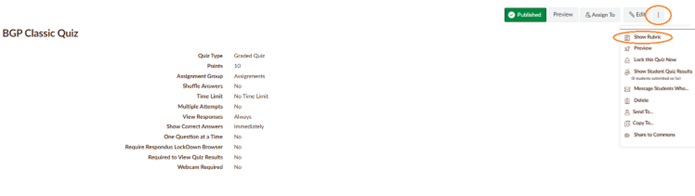
b. Click on the “Add Rubric” button.
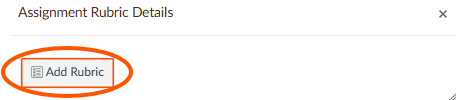
c. Give the rubric a title.
d. Click on the trash can icon for the provided, sample criterion in the first row.
e. Select “Find Outcome.”
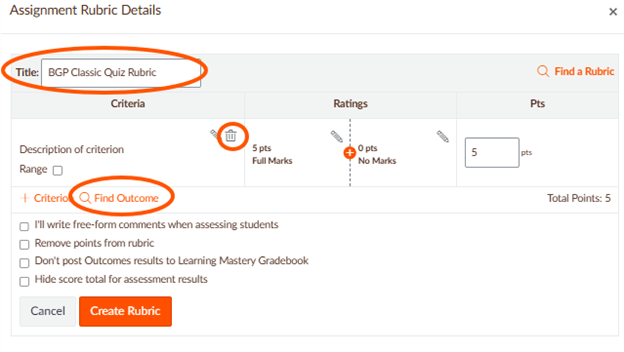
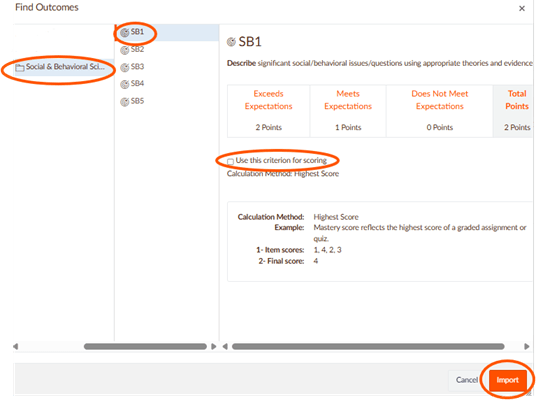
f. Click on the BGP domain LO folder. (In this quiz example, it is Social and Behavioral Sciences). The domain LOs will appear.
g. Select the domain LOs you want to include, one at a time.
h. When a domain LO is selected, uncheck “Use this criterion for scoring.” By unchecking this box, the ratings will be used solely for assessment purposes and the points will not be assigned.
i. Repeat steps g. and h. for all the domain LOs you want to include in the existing grading rubric.
j. Click on “Import.”
k. Click on the “Create Rubric” button.
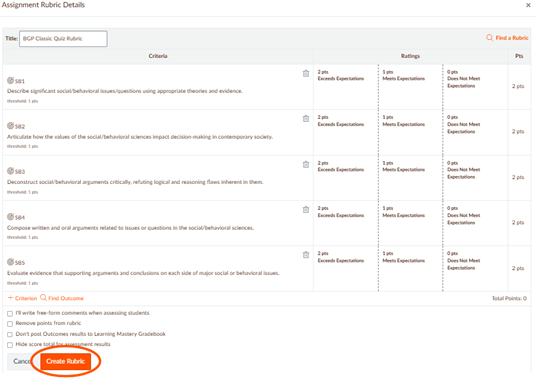
i. You now have an assessment rubric.
*There are no points associated with the BGP domain LOs. Also, rubrics within quizzes will not automatically assess the domain LOs. You will need to select the ratings individually.
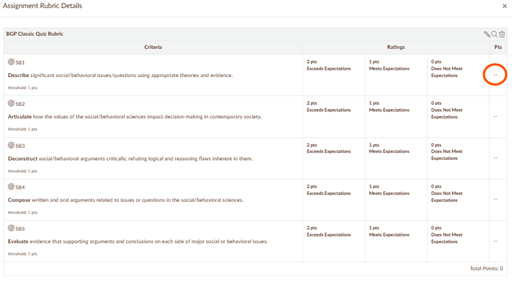
- In a New Quiz, scroll to the bottom on the page and click on “+Rubric” button.
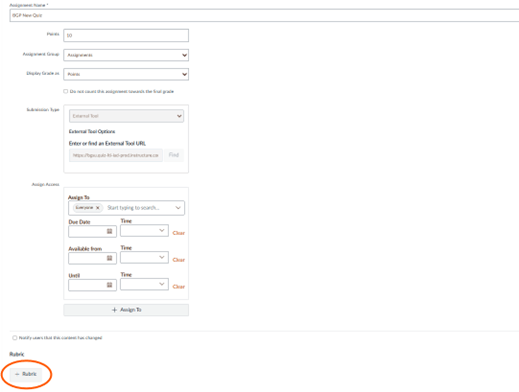
a. Give the rubric a title.
b. Click on the trash can icon for the provided, sample criterion in the first row.
c. Select “Find Outcome.”
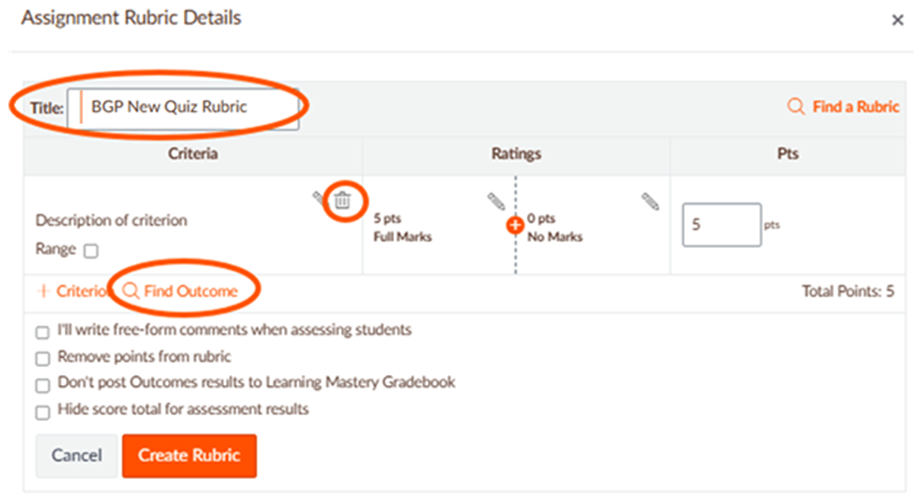
d. Click on the BGP domain LO folder. (In this quiz example, it is Social and Behavioral Sciences). The domain LOs will appear.
e. Select the domain LOs you want to include, one at a time.
f. When a domain LO is selected, uncheck “Use this criterion for scoring.” By unchecking this box, the ratings will be used solely for assessment purposes and the points will not be assigned.
g. Repeat steps e. and f. for all the domain LOs you want to include in the existing grading rubric.
h. Click on “Import.”
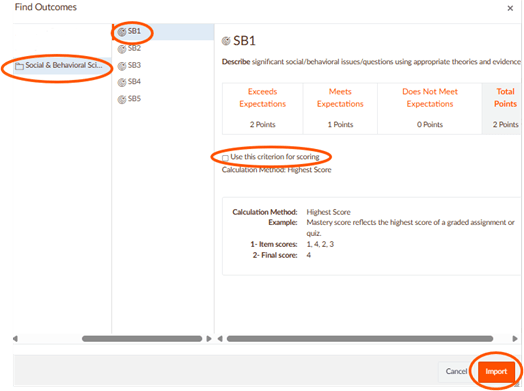
i. Click on the “Create Rubric” button.
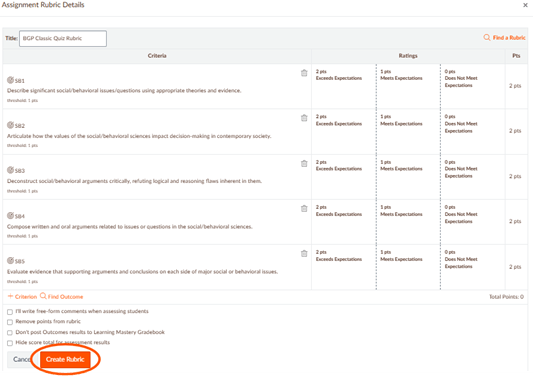
j. You now have an assessment rubric.
*There are no points associated with the BGP domain LOs. Also, rubrics within quizzes will not automatically assess the domain LOs. You will need to select the ratings individually.
Please contact the Office of Academic Assessment at assessment@bgsu.edu if you have any questions.
Updated: 03/19/2026 08:10PM