
Guide for Importing BGP Template Content into a Canvas Course Shell
The following guide will assist you in copying/importing BGP Template content into your BGP course shell. BGP Templates contain the approved domain learning outcomes, an assignment placeholder, and a rubric with the imported domain learning outcomes. All sections of BGP course are to use the same, approved BGP assessment. For more details about the approved BGP assessment for your course, please review the BGP course proposal. If you do not have a copy of the BGP course proposal, please contact the Office of Academic Assessment at assessment@bgsu.edu.
Steps for Importing BGP Template Content into Your Canvas Course Shell
1. Log into Canvas and access your individual section of the BGP course. https://bgsu.instructure.com
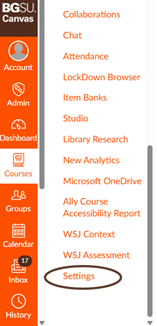
2. Select “Settings” from the bottom of the menu on the left.
3. Click on “Import Course Content on the right menu.
*Make sure you are in your Canvas course shell and not the BGP Template course.
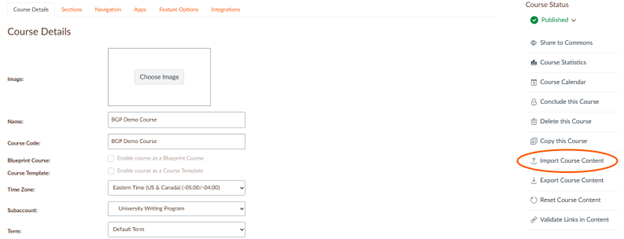
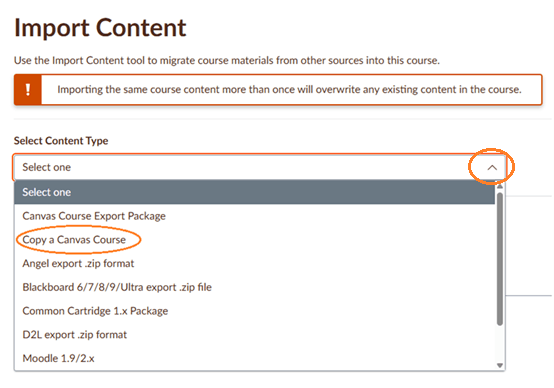
4. The following screen will appear. Click the dropdown arrow to view the content type.
5. Select “Copy of Canvas Course.”
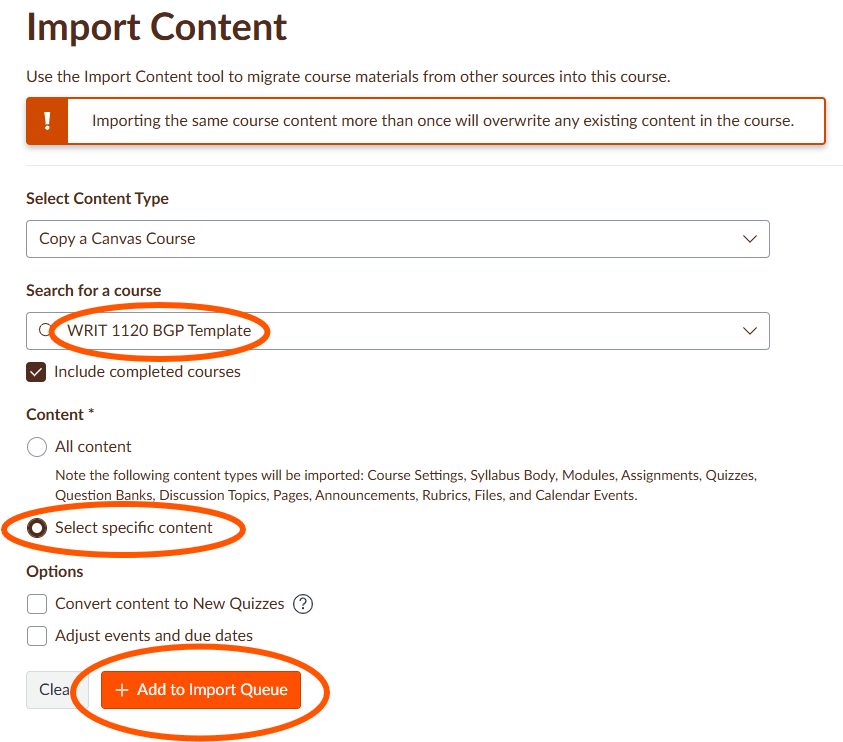
6. Search for a course will appear. In the text box, type the name of the BGP Template for your course. The templates are named after the course prefix and number followed by BGP Template, such as WRIT 1120 BGP Template for this example. If the BGP template is not in your list, contact the Office of Academic Assessment at assessment@bgsu.edu, and they can add you to the template.
7. Under Content, choose “Select specific content,” needed (i.e., BGP assignment, rubric, and learning outcomes).
*If you select “All content,” and have already set up your Canvas course shell, this could reconfigure your home and syllabus pages and potentially cause issues to your course settings. Also, sometimes additional materials are accidentally added to BGP templates. We recommend always selecting “Select specific content.”
8. Click on the “+Add to Import Queue” button.
9. After you select “+ Add to Import Queue,” you will be given the option to choose the content you want to import by clicking on “Select content” button under the Content Imports.

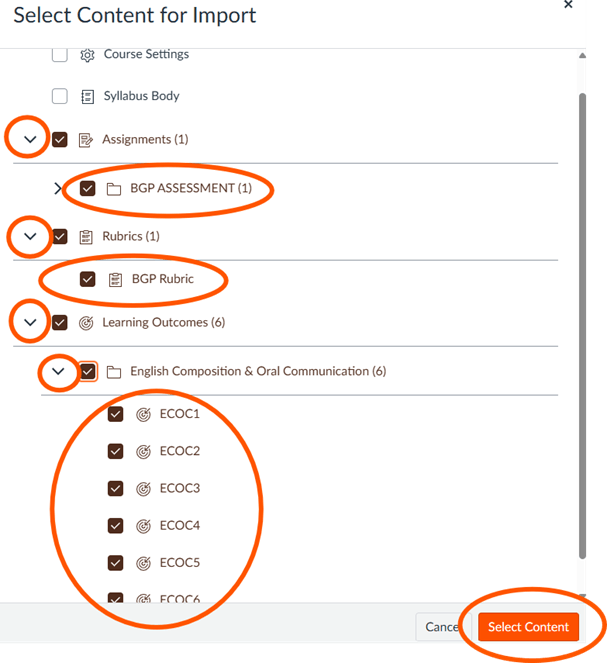
10. After clicking on “Select content,” a list of items will appear, allowing you to choose the content you want to import. Click on the dropdown arrows to view all content.
11. Select the BGP assessment (please note that it may be named something different), rubric, and domain learning outcomes.
12. Click on the “Select content” button.
13. When the import is finished, the screen will indicate this by stating “Completed.” All items you selected for the import (i.e., assignment, rubric, and learning outcomes) are now available in your BGP course shell.

Please contact the Office of Academic Assessment at assessment@bgsu.edu if you have any questions.
Updated: 02/10/2026 05:27PM