
University-wide Course Evaluation of Teaching and Learning Administrator Guide
Introduction
The University-wide Evaluation of Teaching and Learning is composed of six common course evaluation questions, which are asked across all courses every semester. These six questions are referred to as the common questions and were developed by an ad hoc committee, including faculty, administrators, union, undergraduate and graduate student representation. The questions were piloted in 2017-2018 and fully implemented in Fall 2018.
When students complete their course evaluations, they are presented with the six common questions first, followed by any additional targeted questions used by their college or academic unit, and then the three Ohio Senate Bill 1 (SB1) questions. When targeted questions have not been assigned, students are presented with the common questions followed by the SB1 questions. In classes that are co-taught, students are presented with drop-down lists that display their instructors’ names. Students can use these drop-down lists to evaluate each instructor in their course separately for any instructor-specific questions.
Common Questions
The six common questions focus on continuous improvement and begin with the statement, “The instructor....” The questions align with four categories, as summarized below:
Category 1: Expectations
1. The instructor clearly explains course objectives and requirements.
2. The instructor sets high standards for learning.
Category 2: Feedback and Assessment
3. The instructor offers helpful and timely feedback throughout the semester.
Category 3: Support for Student Success
4. The instructor provides opportunities and/or information to help students succeed (for example, tutoring resources, office hours, mentoring, research projects, etc.).
Category 4: Engagement
5. The instructor encourages student participation (for example, by inviting questions, having discussions, asking students to express their opinions, or other activities).
6. The instructor creates an environment of respect.
Students are provided the following response options for all six common questions:
|
Response |
Rating |
|
Strongly Disagree |
1 |
|
Disagree |
2 |
|
Neither Agree nor Disagree |
3 |
|
Agree |
4 |
|
Strongly Agree |
5 |
Students also can provide comments on each of the six questions.
Accessing the Course Evaluation System
The University-wide Evaluation of Teaching and Learning is administered through the Watermark Course Evaluations & Surveys (CES) platform. Administrators can access CES to track response rates for active projects and access results for previous projects. The system can be accessed directly using BGSU’s single sign-on or through Canvas.
Accessing via BGSU Single Sign-On
Use the BGSU single sign-on link to access Course Evaluations: https://bgsu.evaluationkit.com.
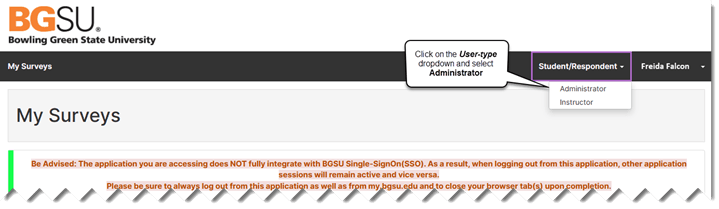
When you log in using the BGSU single sign-on link, the default is “Student/Respondent”. As a Report Administrator, you need to use the dropdown in the upper-right corner to switch to “Administrator” to access your data.
Accessing through Canvas
To access course evaluation results via Canvas:
1. Click on Account.
2. Click on Settings.
3. Click on Course Evaluations.
Note: When logging in through Canvas, the system may automatically determine your role (Instructor, Administrator, or Student) based on your Canvas account. If the system does not default to Administrator, use the dropdown in the upper-right corner of the page to change your role.
Course Evaluations Homepage
After logging into the system as an administrator, the home screen displays three main features:
Most Recent Project Results: A quick access list limited to 5 recent course evaluation projects with their end dates, results start dates, and results status. Click on any project name to access its evaluation results.
Response Rate Tracker: Displays response rate information for any deployed, in-progress evaluation project. When no project is currently in progress, this widget displays “No Project Found.”
My Surveys: Displays any active surveys assigned to your Student account, if you are taking any courses.
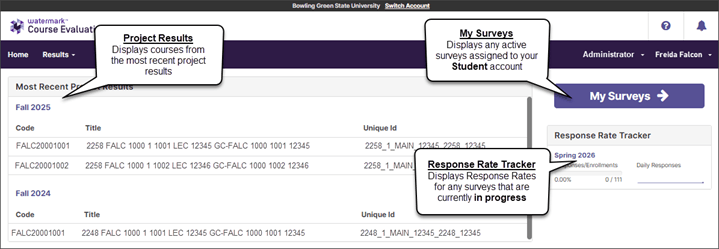
*Best practice: To access evaluation results, click the Results menu item in the top navigation bar, then select Project Results to view and search across all available projects.
When Results Become Available
At the end of each semester, results are available for department administrators, office staff with Report Administrator account access, and instructors to review the day after the Registrar posts final grades in CSS.
All results are released at the same time, regardless of when the course’s evaluation period concluded. Results for courses taught during early-term sessions (e.g., 6, 7, or 8-week) are not available until the end of the semester. As grades for those courses can be modified through the end of the semester, evaluation results are withheld until grades are due.
Accessing Evaluation Results
Navigating to Results
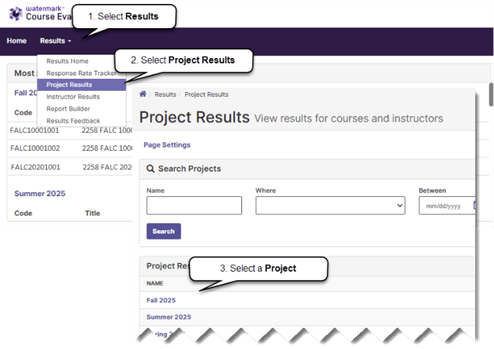
To view course evaluation results, after logging into the course evaluation system:
1. Click on Results.
2. Click on Project Results.
3. Select a semester evaluation project to access the course evaluation data.
There are three methods administrators may use to search for results, and each method has a tab on the Project Results search page:
1. By Hierarchy Level allows administrators to search for and access results for an entire college or department/unit by selecting an item from the hierarchy map.
2. Course Section allows administrators to find results by searching for a specific course or group of courses using a combination of course code patterns, Canvas course titles, unique IDs, and hierarchy levels. Courses may be reported individually or batched together in various ways to combine results from more than one course.
3. By Instructor allows administrators to view results for courses taught by an individual instructor by searching for their name. As with the Course Section tab, reports can be run for single courses or batched together to create summary reports.
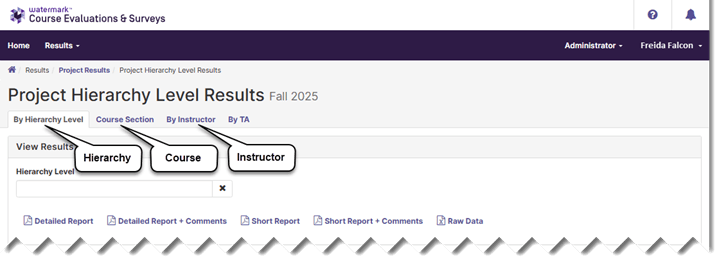
Note: A By TA tab may be displayed on the Project Results page. However, for BGSU’s University-wide course evaluation projects, results are only obtained for instructors of record, and no results are available on the By TA tab.
Finding Reports Using the By Hierarchy Level
Hierarchy-level reports consolidate all evaluation data obtained at the University, college, or department/unit level into a single report.
To search for results using the By Hierarchy Level tab, after selecting a project:
1. Click on the By Hierarchy Level tab on the Project Results search page.
2. Click into the Hierarchy Level field.
3. Select a Hierarchy Level from the list shown.
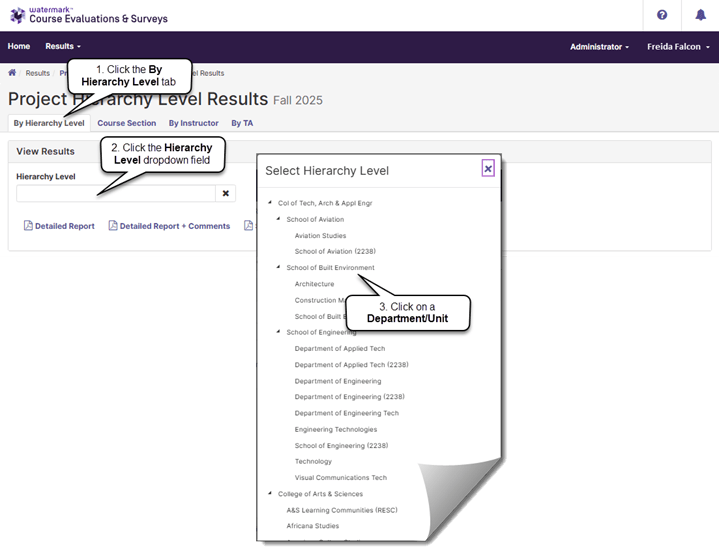
Note: While the image above displays all hierarchy levels, access to hierarchy levels is assigned to administrators in their course evaluation system account settings. Only those levels to which their accounts have been linked will be shown when they select the Hierarchy Level field.
Department/unit hierarchy mappings are the same as those found in Canvas, unless courses have been reassigned to alternate hierarchy levels in the project setup. If an administrator requires access to a hierarchy level that is not displayed in their hierarchy map, please contact the Office of Academic Assessment (assessment@bgsu.edu) for the settings to be modified.
Finding Reports Using the By Instructor Tab
The By Instructor tab provides a way to find courses, or groups of courses, by searching for instructor names and hierarchy levels.
To search for courses by instructor name:
1. Select the By Instructor tab.
2. Enter an instructor’s name (or partial spelling of a name) into the Instructor Name field. You may also select a hierarchy level, to display all instructors within the hierarchy, or to limit the selection of courses by an instructor within a single hierarchy level.
3. Click the Search button.
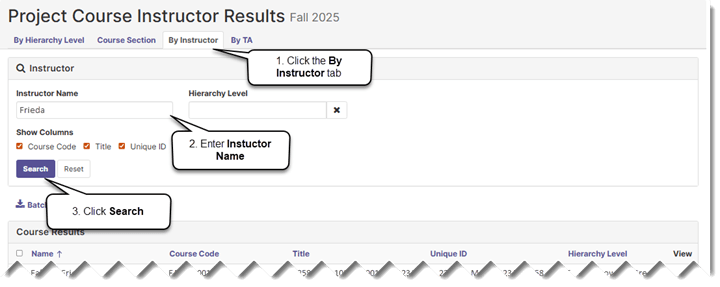
Note: When viewing the By Instructor tab, each row returned by searching will be an individual instructor’s results in a single course section. To view reports aggregated at the course level for courses with multiple instructors, use the Course Section tab.
Finding Results Using the Course Section Tab
The Course Section tab on the Project Results page provides a way for administrators to search for evaluation results obtained for specific courses, or groups of courses.
To find evaluation results using the Course Section tab:
1. Click on the Course Section tab.
2. Enter search parameters into the Code, Title, Unique ID, or Hierarchy Level fields, or any combination of the four.
3. Click the Search button.
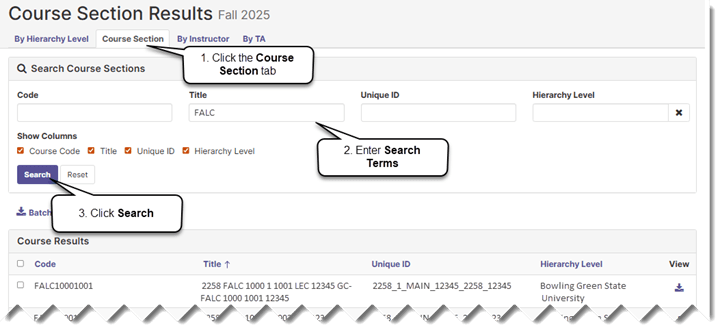
Note: The Code, Title, and Unique ID fields correspond with those found in Canvas. Enter partial text into any of the search fields to return courses that contain that text anywhere within the data. Examples of searches might include the following elements: subject, subject and catalog number, course number, session code, hierarchy level, or campus.
Searching for Courses with Multiple Instructors
When searching for results on the Course Section tab, results for courses with more than one instructor assigned are repeated, once for the aggregated course results, and then again for each instructor’s individual results. When selecting your Report Format while using the Course Section tab, notice whether you are requesting a report for the course aggregate, or individual instructor, results.
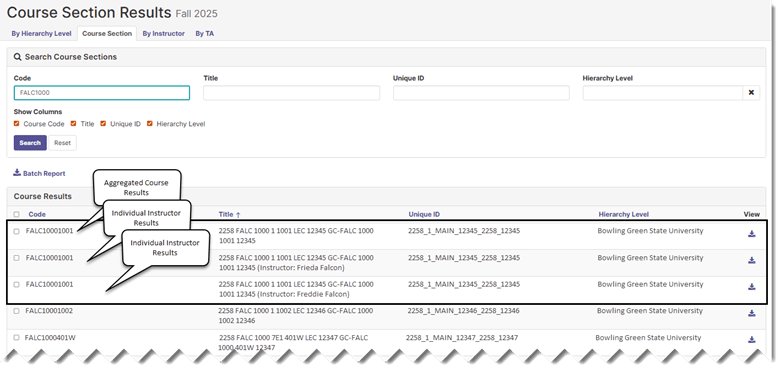
Downloading Reports
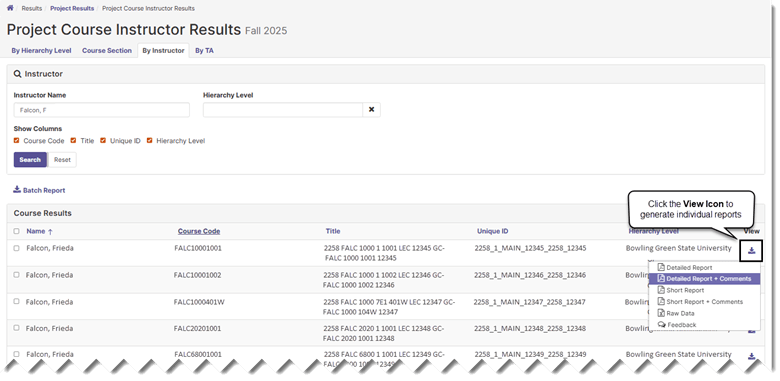
Reports are downloaded by selecting a report format from the Project Results page after finding the desired courses or instructors. Regardless of the search method used to find evaluation results, the course evaluation system provides the same set of reports on each of the Project Results page tabs, as described in the Report Formats section of this manual.
Generating Individual Instructor Reports
To generate a course evaluation report for an instructor in a single class section, click the View icon from the By Instructor tab and select a report format from the dropdown menu.
Generating Individual Course Reports
To generate a course evaluation report for a single course, click the View icon from the Course Section tab, as described in the preceding section.
Note: When searching for results on the Course Section tab, results for courses with more than one instructor assigned are repeated, once for the aggregated course results, and then again for each instructor’s individual results. When selecting your Report Format, consider whether you are requesting the aggregated course, or individual instructor, results.
Batch Reports
The Batch Reporting feature can be used to download multiple reports simultaneously or to aggregate data from more than one instructor, section, or course into a single report. Batch reports can be generated using the Course Section or By Instructor tabs on the Project Results page.
Using the Batch Report Feature
To combine results, first select the courses or instructors from which data are required, and then select a batch report type.
1. Search for courses by Course Section or by Instructor.
2. Select courses to be included in the report by checking the box next to their names.
3. Click the Batch Report link.
4. Provide a Report Name.
5. Select a Report Type.
6. Select a Delivery Type.
7. Click Go to generate the report.
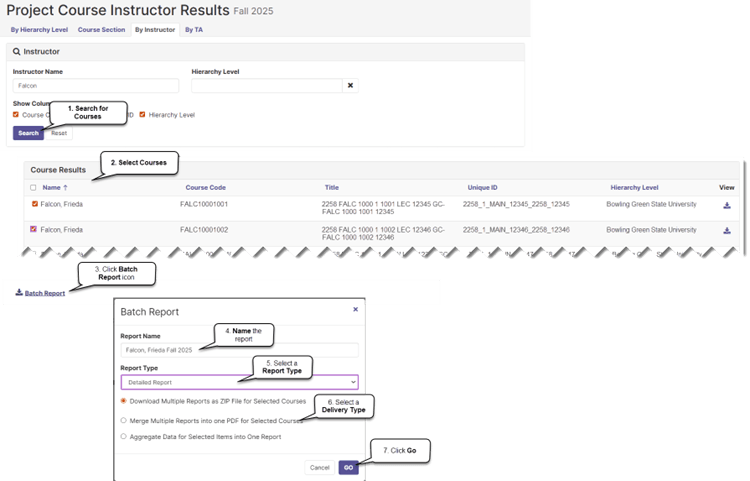
The report types available for batch reports include Detailed Report, Detailed Report + Comments, Short Report, Short Report + Comments, and Raw Data.
Three delivery types are available:
1. Download Multiple Reports as Zip File: Separate PDF reports will be produced for each of the selected courses and saved into a .zip file.
2. Merge Multiple Reports into one PDF: Separate reports will be created for each of the selected courses or instructors and combined one after the other to form a continuous, multi-page PDF file.
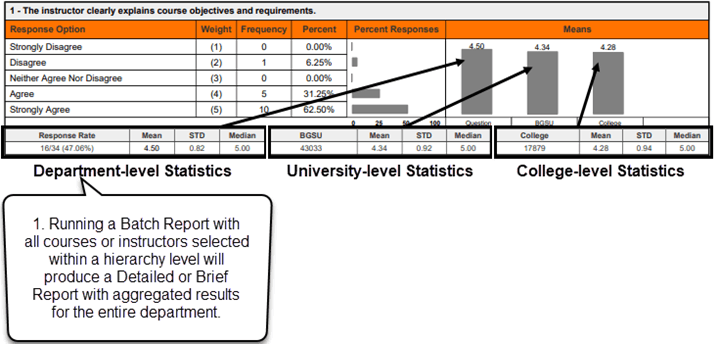
3. Aggregate Data for Selected Items into One Report: A single summary report will be created by combining data from each of the selected courses, sections, or instructors to form a composite. This option will combine the data obtained from each of the course evaluation questions to create aggregated frequencies, percentages, means, standard deviations, and medians. This report also will provide the means, standard deviations, and medians for BGSU overall and the college for each of the six university-wide questions.
Note: When batch files are requested, the course evaluation system generates an email that provides a link to the results.
Understanding and Using Reports
Report Formats
Five types of report formats are available from the Project Results page:
1. Detailed Report — A PDF report which provides summary statistics obtained for each question in the course evaluation, including frequencies, standard deviation, median, and mean scores shown at the course, college, and University levels.
2. Detailed Report + Comments — A PDF report which includes student comments in addition to the summative statistics described above.
3. Short Report — A PDF report that displays summary statistics, including mean scores for each question in a condensed format at the course, college, and University levels.
4. Short Report + Comments — A PDF report that includes student comments in addition to the summative statistics provided in the condensed report described above.
5. Raw Data — An Excel data file which includes anonymized results at the individual response level. The raw data file can be used in Microsoft Excel or Power BI to generate reports that go beyond the four packaged reports which are outlined above.
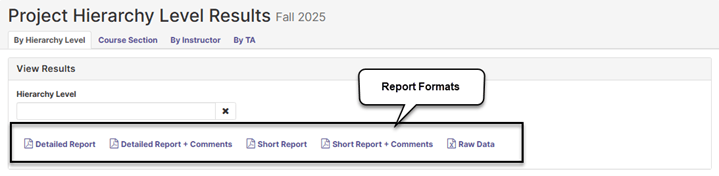
In all reports, results for the six common questions are shown first, followed by any targeted questions the college or department/unit might be using, and then the three SB1 questions.
Note: The Detailed Report + Comments report is recommended as the default report for both instructors and administrators because it includes student comments in addition to question-level response frequencies and mean scores. The six common questions all include a Comments open-ended response option, and those data can only be viewable using the “+Comments” report options. For colleges and departments/units that use open-ended targeted questions, the "+ Comments” report options must be used to view the qualitative results.
Detailed Report Format
There are two types of Detailed Report formats, (Detailed Report and Detailed Report + Comments) both of which may be downloaded from the evaluation system in PDF format. Each format produces a PDF report which includes a header, results, and mean of means section.
The header section displays the name of the course, identifies the instructor of record, and shows the overall response rate (number of students who participated in the course evaluation divided by the total number of students enrolled in the course).
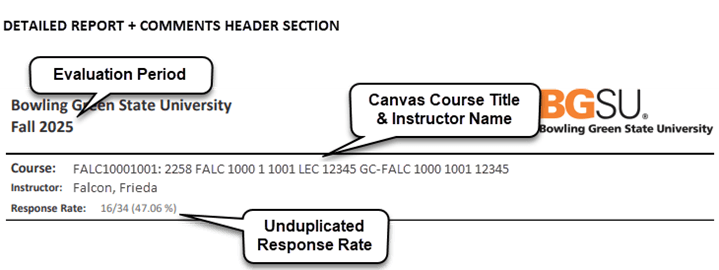
Note: When courses are co-taught, all instructor names appear in the Instructor line, and the instructor for whom the report is being generated is indicated by an asterisk.
The results section summarizes response statistics for each course evaluation question. It includes the question text, response options, response option frequencies (number of students selecting each response item), question response rate (number of students who completed the question divided by the total number of students in the course), mean score (average), standard deviation (measure of variability), and median (middle). Summary results for each item are displayed side-by-side at the course, University, and college levels. Student comments are included only when the Detailed Report + Comments report has been selected.
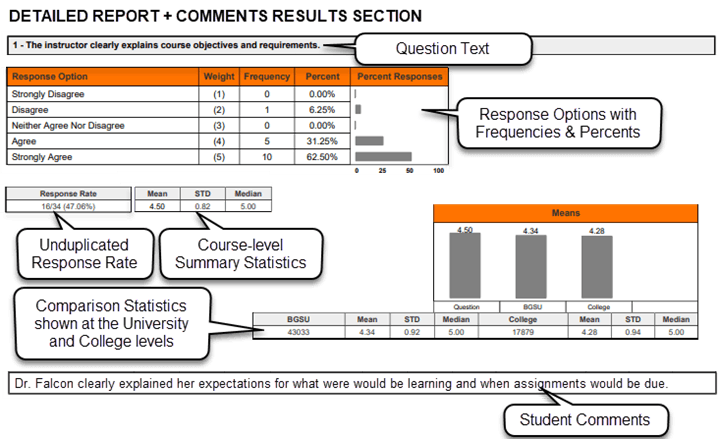
The mean of means section is shown at the bottom of the Detailed Report and provides a combined mean score for all six common questions.

Short Report Format
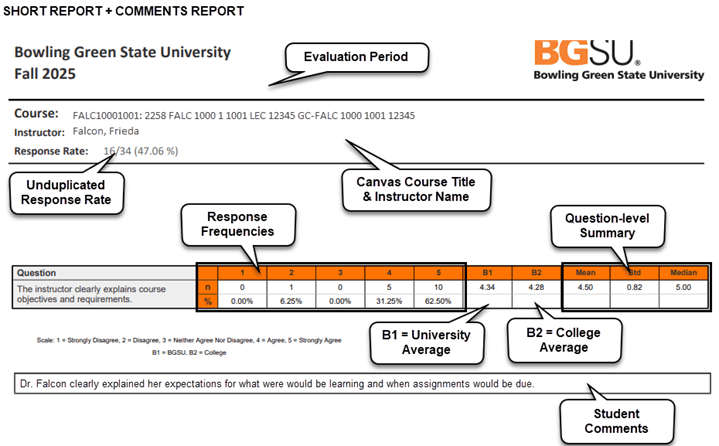
As with the Detailed Report, there are two types of Short Report formats (Short Report and Short-Report + Comments). When run at the course or instructor level, the header section of the Short Report identifies the name of the course, instructor of record, and response rate. The results section presents results for each question in a linear fashion with response frequencies first, followed by mean scores obtained at the University and college levels, and then the mean, standard deviation, and median score obtained at the course level.
Raw Data Report
Raw data output is available for each course or selection of courses using the Raw Data Report. When this report format is selected, the course evaluation system produces an Excel file with anonymized evaluation data. Each row in the raw data file represents a single student’s response to a single instructor within a single course section. In co-taught courses, a student who evaluates both instructors will have two rows, one for each instructor evaluated, so the total row count may exceed the enrollment figure for that course.
The raw data file contains three categories of columns:
1. Course and instructor identification: These columns identify the context for each response, including the hierarchy path, hierarchy level name, course code, course title, unique course ID, survey start and end dates, instructor name, and instructor username.
2. Course-level summary statistics: These columns, including Enrollments, Respondents, and Response Rate, represent totals at the course level. These values are the same on every row for a given course and reflect the true course-level counts. They are not affected by co-taught courses; even when a student evaluates both instructors, the enrollment and respondent counts are not duplicated in these columns.
3. Individual response data: These columns contain the student’s question-by-question responses, including quantitative ratings and open-ended comments. Each question occupies its own column, labeled Question 1, Question 2, and so on. The raw data file includes a Question Mapper tab that maps each column label to its full question text, making it easy to identify which responses correspond to the common questions, targeted questions, and SB1 questions.
The raw data file is useful for running further analysis to identify trends and areas for growth. When calculating summative statistics for quantitative ratings, values are computed across all rows of response data. Because the Enrollments, Respondents, and Response Rate columns already reflect true course-level counts, no special handling is needed for those columns in co-taught courses.
Hierarchy-level Raw Data: When run at the hierarchy level, the Raw Data Report exports all evaluation results (except for personally identifying information) for each class and instructor within the hierarchy. This allows departments/units to create their own reports using data obtained from the evaluation for all classes which were evaluated within the department’s/unit’s position in the hierarchy.
Aggregate Reporting
Interpreting Comparison Statistics on the Detailed Report
The Detailed Report can be run at three levels (instructor, course, and hierarchy), and depending upon which level it is run, the report produces different comparison results in the statistical summaries.
Instructor-level Reports: The individual question response frequencies and statistical summary are displayed side-by-side with University and college level comparisons.
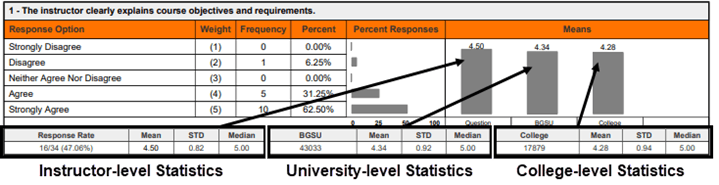
When run from the By Instructor tab as an individual report, the Detailed Report displays average scores, standard deviations, and median scores for each question (including any targeted questions) obtained for a single instructor teaching a single course.
When interpreting results aggregated using the Batch Report feature, the Detailed Report presents the instructor’s combined ratings across all course sections that were selected for the batch report.
Course-level Reports: When run at the course level, the Detailed Report compares averages for each question (including any targeted questions) at the course level, the University level, and the college level. For courses with more than one instructor, the results for each instructor are aggregated at the course level. For batch reports, the response frequency rates and question summary statistics represent the combined totals across all sections included in the report.
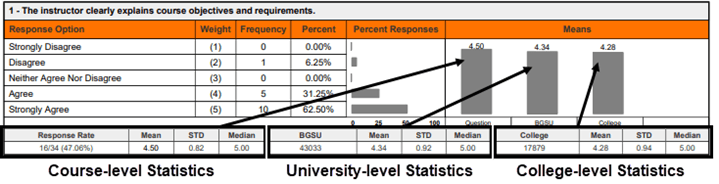
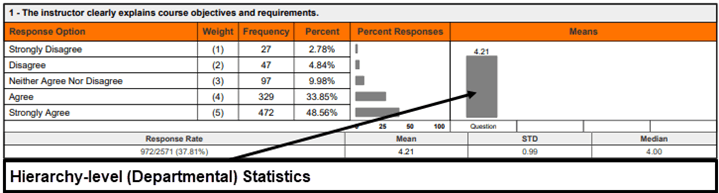
Hierarchy-level (Department) Reports: When run at the hierarchy level, the Detailed Report displays aggregated averages from every course within the hierarchy structure for each question (including any targeted questions) at the hierarchy level only. University and college comparisons are not shown at this level.
Department-level Reports (Comparing Department/Unit Results Against College and University Results)
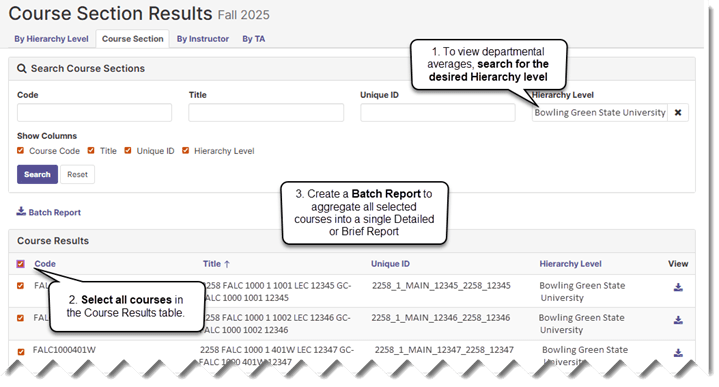
Departments/units can compare their averages to college or University averages by creating a Batch Report from the Course Sections or By Instructor tab with all their courses or instructors selected.
1. Once you are in the By Instructor and Course Sections tab, select their hierarchy.
2. Then select either all of the instructors or courses displayed for the hierarchy.
3. Then select Batch Report and click on "Aggregate Data for Selected Items into One Report.” In the resulting report, the Question is the hierarchy mean.
The resulting Detailed Report will present aggregated results in the question response frequencies and statistical summaries for each question side-by-side with the University and college levels.
Common Question, Targeted Question, and SB1 Reporting
Because the common questions are included in all course evaluations, the comparison statistics shown on the Detailed and Short Reports for the course, University, and college levels all reflect different sets of respondents and produce comparisons. However, since most targeted questions apply only to specific colleges or departments/units, the University and college level comparison values for those questions are limited to the respondents within the assigning unit. The comparisons may appear duplicated because they are not evaluated at those higher levels.

The SB1 questions are a special case. While they are technically implemented as a targeted survey, they are assigned to all courses. Therefore, the University and college comparison values for SB1 questions reflect all courses, unlike other targeted surveys where comparisons are limited to the assigning unit.
Mean of Means Calculation
A Mean of Means calculation is provided at the end of the Detailed and Short Report formats to show the combined mean score obtained on the evaluation for all six common questions.

Note: The Mean of Means calculation averages only the six university-wide common questions. It does not include results from any targeted college/unit questions or the SB1 questions.
Response Rate Tracker
The Response Rate Tracker allows administrators to monitor response rates in real time during an evaluation project. Instructors can also view response rates for their assigned courses and continue to encourage students to complete course evaluations.
Accessing the Response Rate Tracker
Navigate to Results → Response Rate Tracker from the top navigation bar.
1. Select Response Rate Tracker from the Results menu.
2. Select a Project from the Response Rates table.
3. Select a Hierarchy from the Response Rates table.
4. Review the resulting response rates by course section.
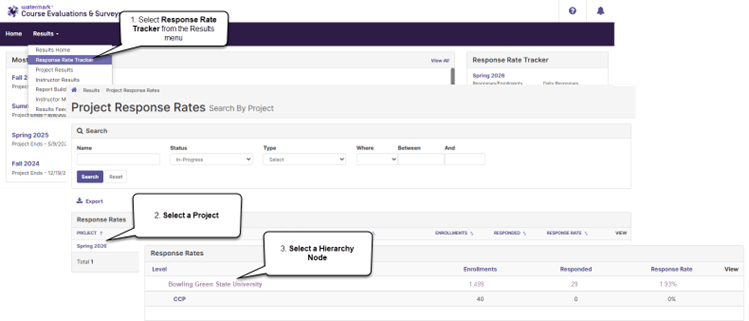
The project response rates can also be accessed for any course evaluations that are in progress using the Response Rate Tracker widget on the home screen.
Viewing Response Rates
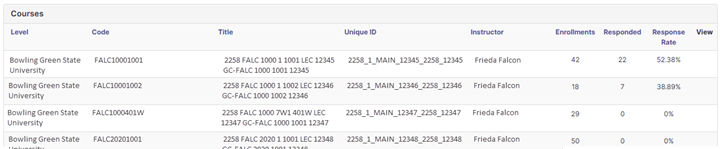
When viewing a project in the Response Rate Tracker, you can view the project start and end dates, overall survey enrollments, the number of respondents who have submitted evaluations, and the overall response rate (number of enrolled students who have submitted a response divided by total enrollments).
Completing the Department Acceptance Report
Following the initial import and processing of data from Canvas, course and instructor lists are forwarded to each academic department/unit for review. The Department Acceptance Report (DAR) is the primary tool administrators use to verify and correct course and instructor assignments before evaluations begin.
Department Acceptance Report
Administrators are sent a DAR workbook for their department from the Office of Academic Assessment. The DAR provides a comprehensive view of all courses scheduled for evaluation, including which courses are included, which have been automatically removed (i.e., auto-deleted), and any alert conditions that may need attention. The DAR workbook includes the following information for each course:
Canvas Code — The Course Code as it appears in Canvas.
Canvas Title — The Course Title as it appears in Canvas.
CourseInProject — Whether the course is currently included in the evaluation project (“Yes” or “No”).
Alert — Any alert conditions that may require attention, such as auto-delete notifications, cross-list candidates, or enrollment flags.
Correction — A blank column for administrators to document needed changes. Review the Action Codes tab in the workbook for a list of common correction types.
Instructor / Username — The instructor of record and their Canvas username.
Survey Dates — The scheduled evaluation start and end dates.
Reference Columns — Additional columns include enrollment counts, career, subject, catalog number, component type, session, campus, and location.
The DAR workbook also includes reference tabs: a “DAR Report Column Definitions” tab that explains each data column, an “Alert Descriptions” tab that describes what each alert condition means and what action may be needed, and the “Action Codes” tab referenced above.
Auto-deleted Courses
Certain course types are automatically removed (i.e., auto-deleted) from the evaluation based on institutional rules developed in collaboration with department administrators. The primary purpose of auto-deletion is to ensure that instructors are not evaluated more than once for multi-component courses. For example, if an instructor teaches a lecture and a lab section of the same course, only the lecture section is typically included in the evaluation; the lab section is auto-deleted to prevent duplicate evaluations of the same instructor for the same course.
Common categories of auto-deleted courses include labs, recitations, practica, independent studies, clinical rotations, and internships. Some departments also have enrollment thresholds below which courses are automatically removed.
Interdisciplinary Courses
When interdisciplinary courses are taught across multiple departments, for example, a course listed under both History and English, the course is assigned to the instructor’s primary (home) department within the evaluation hierarchy. The targeted survey for the instructor’s home department is applied by default. In some cases, the other discipline’s department may request that their targeted questions also be included on the evaluation for that course.
Reviewing and Submitting Corrections
When reviewing the DAR, administrators should verify that the courses and instructors listed are correct and document any needed changes in the Correction column. Common types of corrections include:
- Removing a course that should not be evaluated.
- Adding a course that is missing from the evaluation.
- Changing the instructor assigned to a course.
- Requesting that a course be cross-listed with another section.
- Changing the evaluation dates for a course.
Note: Course evaluation dates are established by default based on the academic session in which it is offered. Report any inconsistencies you may find while reviewing the DAR. Changes to evaluation dates only apply in special, predetermined cases.
Courses that appear on the DAR with a “No” in the CourseInProject column and an “auto-delete” or “remove section” alert have been automatically excluded from evaluation. If an administrator believes an auto-deleted course should be evaluated, they can note this in the Correction column and the course will be restored.
Administrators are generally given one to two weeks to review and submit their corrections, depending on the time remaining before the first evaluation period. All corrections should be processed before instructor announcement emails are sent, which occurs approximately five days before evaluations begin.
Note: Changes to courses, instructors, and targeted question assignments must be made prior to the start of the evaluation period. Once students begin submitting evaluations for a course, its settings, including the instructor of record and assignment of targeted questions, cannot be modified. While course and instructor changes can technically be made to a deployed project, they should be avoided after evaluations have begun because students who have already submitted cannot have their responses reassigned.
How Evaluation Projects Are Built and Administered
This section provides background on how course evaluation projects are created, how courses and instructors are assigned, and how evaluations are administered each semester. Understanding these processes can be helpful when reviewing the Department Acceptance Report, interpreting results, or communicating with the Office of Academic Assessment.
Project Creation and Deployment
A new course evaluation project is created each semester by the Office of Academic Assessment. Much of the project setup work (i.e., creating the project shell, configuring communications, setting up surveys, and establishing evaluation dates) begins before census date. The course and enrollment import occurs after the 15th day of classes to ensure that instructors have had time to create their Canvas course shells and assign the appropriate instructors of record. Project setup includes the following tasks:
- Importing courses, instructors of record, and student rosters from Canvas.
- Processing course data through the Office of Academic Assessment’s Access Application, which assigns courses to the correct hierarchy levels and identifies courses to be excluded from the evaluation.
- Generating Department Acceptance Reports (DARs) and distributing them to department administrators for review.
- Reviewing and processing corrections to course and instructor assignments based on feedback from department administrators.
- Assigning targeted survey questions to courses.
- Specifying the administration dates during which students will complete course evaluations.
- Defining the date after grades have posted upon which course evaluation results will become available to administrators and instructors.
- Configuring project communications.
- Course, Instructor, and Student Import
Course Import: Courses are imported once (and only once) from Canvas when the evaluation project is created. This initial import establishes the mapping between CES and Canvas that enables daily enrollment refresh. Following this initial import, courses are manually updated based upon information provided to the Office of Academic Assessment by administrators from the academic offices. Course adjustments may include reassigning courses to the correct hierarchy node, removing courses that should not be evaluated, and adding courses that were not captured in the initial import.
Instructor Import: Any individual assigned the “Instructor” role in a Canvas course will be imported as an instructor of record into the course evaluation project, including all co-instructors in co-taught courses. Faculty are advised to assign additional helpers in their courses a role other than Instructor—such as Observer—to prevent them from being pulled into the evaluation as an instructor of record. Following the initial import, instructor assignments are manually updated based upon information received from department administrators. During the DAR review, administrators typically request corrections such as removing instructors who should not be evaluated for a given course. For College Credit Plus (CCP) dual-enrollment courses, instructor assignments are obtained from the Office of Admissions and added after the initial import.
Note: The Office of Academic Assessment uses Canvas to pull instructor information. Because instructors sometimes add additional instructors to their Canvas shell who are not instructors of record and instructor assignments in CSS do not always reflect who is actually teaching, it is important that department administrators carefully review their DAR to ensure that instructors listed in the project are both accurate and qualified to teach the courses to which they have been assigned. Only instructors of record are assigned to courses in the University-wide evaluation. Teaching assistants are not included. Some college and academic offices create and administer their own TA evaluation projects independently; those evaluations are separate from the University-wide evaluation managed by the Office of Academic Assessment.
Student Import: Rosters of enrolled students are loaded into the course evaluation system following the 15th day of courses. Student enrollments are refreshed daily from Canvas up until the completion of the evaluation period for each course. The daily enrollment refresh is configured per course and is tied to the Canvas enrollment roster, which means students who are added to or dropped from a course in the Campus Solutions System (CSS), and subsequently reflected in Canvas, will automatically appear in or be removed from the evaluation.
Students who drop a course are removed from the course evaluation list once the drop has been fully processed through CSS and reflected in Canvas. Students who withdraw from a course, however, are still invited to complete an evaluation. It is expected that students who have withdrawn will restrict their comments and evaluation to the period during which they were actively attending the course.
Evaluation Administration Dates
Students are permitted to complete course evaluations only during prescribed time periods that are dependent upon the semester and the course session. Timelines for the administration of course evaluations occur as follows:
Fall and Spring Semesters
15-week sessions: 2 weeks prior to the final exam week.
Note: Only the 15-week session has a designated finals week.
11-week sessions: Last 2 weeks of the session.
7-week sessions: Last week of each session.
Summer Semesters
6, 8, or 12-week sessions: Last week of each session.
Sessions shorter than 6 weeks (3 or 4 weeks): Condensed evaluation period.
Specialized Programs
Some programs operate on non-standard academic calendars. Doctor of Physical Therapy (DPT) and Resort and Attraction Management (RAAM) sessions may have evaluation timing that differs from the standard schedule. The Office of Academic Assessment coordinates with these departments individually to determine appropriate evaluation dates.
College Credit Plus Courses
College Credit Plus (CCP) dual-enrollment courses, identified by session code DEN, follow the same evaluation schedule as their parent department’s standard courses. CCP courses are routed to designated CCP subnodes within the hierarchy based on the course’s subject and, when appropriate, campus for reporting purposes.
Course Evaluation Administration
The University-wide Evaluation of Teaching and Learning is administered online. Students may access their evaluations by any of the following methods:
- Following links in their announcement emails.
- Logging in through their Canvas accounts.
- Navigating directly to https://bgsu.evaluationkit.com and logging in with their BGSU single sign-on credentials.
Note: students receive reminders when course evaluations are available every time they log into Canvas.
Messaging
Email messages are configured to send automatically through the evaluation project based upon course evaluation administration dates. The following communications are sent to administrators, instructors, and students throughout the evaluation cycle:
Course Evaluation Announcement: An initial announcement message, which includes the administration dates for all sessions, is sent to all unit administrators prior to the start of course evaluations.
Upcoming Course Evaluation Email: Instructors receive an announcement message approximately 5 days prior to each evaluation start date with a list of their courses for the semester. This email lists all courses assigned to the instructor for the entire term, including courses in sessions that have not yet begun. This is by design so that instructors can review their full course list and report any errors before evaluations begin. Corrections to instructor assignments must be completed before the administration period begins.
Course Evaluation Email: Students and instructors receive an announcement message on the first day that evaluations become available for each session.
Non-Respondent Emails: Non-responding students receive up to three reminder messages during each evaluation period. The first reminder is sent 2 days after the evaluation start date, the second is sent 2 days before the end date, and the final reminder is sent 1 day before the end date. For summer sessions with shorter evaluation periods, the reminder schedule is condensed.
Certificate of Completion Email: A certificate of completion is emailed to students following the completion of each course evaluation. Only one certificate email is sent per evaluation. If a student deletes or loses the email, it cannot be re-sent; however, the Office of Academic Assessment can send the student an email for confirmation if needed.
Note: When desired, students may forward their Certificate of Completion email to their instructors as evidence that they have completed an evaluation of their course. The Certificate of Completion does not include information that would identify responses as belonging to an individual respondent.
Results Notification Email: Administrators and instructors receive an email stating that their evaluation results are available. This message is typically sent the day after grades are due.
Resetting Student Responses
In some situations, a student may need to revise or redo a course evaluation after it has been submitted For example, if the student accidentally selects “Disagree” when they meant to select “Agree”, the Office of Academic Assessment can reset or re-open a student’s response upon request by the student, if the request is during the course evaluation period.
Two options are available:
1. Re-open: Makes the survey active again for the student without deleting their previous responses. This option can be used during the active evaluation period, when the student needs to make minor changes or additions to an evaluation that has already been submitted.
2. Reset: Deletes the student’s responses for all questions on the course evaluation. This option can be used during the active evaluation period, when the student needs to start over completely for a given course.
Students cannot edit their responses after the evaluation period for their course session has closed. If students have concerns about their responses after the course evaluation period has ended, they can contact the Office of Academic Assessment and request that their responses be deleted. Course evaluation responses can only be deleted before results are made available to faculty and administrators. Students who wish to provide feedback about a course after an evaluation period has expired can contact their department directly, with the understanding that this is not an anonymous way of providing such feedback.
Students who need a response reset or re-opened during an active evaluation period should contact the Office of Academic Assessment (assessment@bgsu.edu). Department administrators and instructors also can forward student requests to the Office of Academic Assessment (assessment@bgsu.edu).
Student Anonymity
The anonymity of students who respond to the course evaluation is protected to the degree possible. Several measures are in place to safeguard student anonymity.
Enrollment thresholds: Course sections with fewer than 4 students enrolled may be removed from the evaluation to protect the anonymity of respondents. Departments are given the opportunity to review these sections through the Department Acceptance Report and can request their removal or retention. When evaluating results from course sections with small enrollments, the best practice is to use the batch reporting feature to aggregate results across multiple sections, which helps protect the anonymity of respondents.
Cross-listing combined sections: Starting in Summer 2023, combined courses are cross-listed in the evaluation to protect student anonymity in smaller sections. Cross-listing is applied when the course sections meet all of the following criteria: same career, same subject, same four-digit catalog number, same instructor, and same meeting details, and the smaller section has fewer than 4 students enrolled. Evaluations are always administered separately to students in each section regardless of whether a cross-list is created. Cross-listing controls how results are presented: when a cross-list is created, results from both sections are aggregated for anyone outside the Office of Academic Assessment. When both sections have 4 or more students enrolled, no cross-list is created, and results are reported separately. The Office of Academic Assessment can view each section’s results separately for purposes of internal review. If departments would like cross-listed results separated by section, the Office of Academic Assessment can provide those results upon request.
Results timing: Course evaluation results are not made available to administrators or faculty until after grades have been posted at the end of each semester.
Hierarchical Reporting
Course evaluation results are reported within a hierarchy of colleges and departments/units. Department administrators and office staff have access to results within their corresponding hierarchy level. The Office of Academic Assessment manages access to course evaluation results by creating administrator accounts within the course evaluation system.
Note: When new office staff are hired by academic units, the Office of Academic Assessment can create their account and grant access to their department’s/unit’s data once notified by a Dean, Associate Dean, or Department Chair.
Instructors can access and view course evaluation results for any course in which they are evaluated as an instructor of record.
Targeted Surveys
Departments and colleges have the option of designing their own questions to be added as targeted surveys to the University-wide course evaluation. Targeted surveys are assigned by hierarchy node, and all class sections within an assigned hierarchy receive the targeted questions in addition to the common questions and SB1 questions. No classes can be excluded from a targeted survey that is contained within the assigned hierarchy. In addition to hierarchy-level assignment, targeted surveys can also be manually assigned to individual courses that fall outside the assigned hierarchy when those courses should receive the same questions.
To request a new targeted survey, contact the Office of Academic Assessment at assessment@bgsu.edu. Allow sufficient lead time before the project deployment date and provide draft questions for review and feedback. The Office of Academic Assessment is available to provide guidance on best practices for creating effective evaluation questions.
Best Practices for Targeted Survey Questions
Well-crafted questions yield meaningful, actionable data that support continuous improvement in teaching and learning. When designing targeted survey questions, consider the following principles:
- Use clear, concise language that students can easily understand.
- Avoid double-barreled questions that ask about two things at once.
- Focus on observable behaviors and experiences rather than abstract concepts.
- Ensure questions align with the learning objectives and teaching practices being assessed.
- Use consistent response scales across related questions.
- Avoid leading or biased language that suggests a preferred response.
Ohio Senate Bill 1 Questions
Beginning in Summer 2025, three additional questions were added to every course evaluation in response to Ohio Senate Bill 1 requirements. These questions were developed by the Ohio Department of Higher Education Chancellor and must be asked exactly as worded by the state. The SB1 questions are included in every course evaluation across all colleges, departments, and terms.
SB1 Question 1:
Does the faculty member create a classroom atmosphere free of political, racial, gender, and religious bias?
Response options: Yes, No
SB1 Question 2:
Are students encouraged to discuss varying opinions and viewpoints in class?
Response options: Yes, No, Not applicable
SB1 Question 3:
On a scale of 1–10, how effective are the teaching methods of this faculty member? With 1 being not effective at all and 10 being extremely effective.
Response options: 1–10
Note: The SB1 questions are implemented as a targeted survey assigned to all hierarchy nodes. Although they appear alongside other targeted questions in evaluation reports, they are required on every evaluation and cannot be removed. Because SB1 questions use different response scales (Yes/No and 1–10) than the common questions (1–5 Likert scale), they are reported separately in summary statistics and are not included in the Mean of Means calculation.
Quick Reference
Common Administrator Tasks
|
Task |
When |
How |
|
Review Department Acceptance Report |
After census date each semester |
Review the DAR workbook emailed to you; document corrections in the Correction column and return by the stated deadline |
|
Report course or instructor errors |
Before evaluation period begins |
Contact your college office or email assessment@bgsu.edu |
|
Monitor response rates |
During evaluation periods |
Log in to CES and check the Response Rate Tracker |
|
Access evaluation results |
After grades are posted |
Log in to CES; navigate to Results > Project Results |
|
Request new targeted survey |
Before project deployment |
Email assessment@bgsu.edu with draft questions |
|
Request new administrator account |
Any time |
Dean, Associate Dean, or Chair contacts assessment@bgsu.edu |
Troubleshooting
I can’t access my department’s data: After logging in, check that your role is set to Administrator (not Student) using the dropdown in the upper-right corner. If you still cannot access your data, your account may not be linked to the correct hierarchy level. Please contact the Office of Academic Assessment to update your account settings.
A course is missing from the evaluation: The course may have been auto-deleted based on institutional rules (e.g., independent studies, labs, practica). Check your Department Acceptance Report—if the course appears with a “No” in the CourseInProject column, you can request its restoration through the DAR correction process. If the course does not appear on the DAR at all, contact the Office of Academic Assessment.
An instructor is assigned to the wrong course: Contact the Office of Academic Assessment before the evaluation period begins. Instructor assignments cannot be changed after students have begun submitting evaluations.
A student needs to redo or revise their evaluation: The student’s response can be re-opened or reset, but only while the evaluation period for their course is still active. After the evaluation period has closed, responses can only be deleted upon the student’s request. Have the student contact the Office of Academic Assessment.
A student says they didn’t receive a Certificate of Completion: Certificate emails are sent automatically upon submission and cannot be re-triggered. Advise the student to check their email inbox (including spam/junk folders) for the certificate. Only one certificate is sent per evaluation.
Additional Information
Additional information or a Word version of this guide may be obtained by contacting BGSU’s Office of Academic Assessment at assessment@bgsu.edu.
Other course evaluation resources are available at https://www.bgsu.edu/institutional-effectiveness/office-of-academic-assessment/evaluation-of-teaching-learning.html
Updated: 04/23/2026 06:03PM