
Guide for Submitting BGP Assessment Data via Canvas
BGP domain learning outcome assessment data are submitted via Canvas. This guide provides the steps needed to submit your data. Once you have finished the rubric for each student, you have completed your BGP assessment data submission process. Please note, if a student does not complete the BGP Assessment, leave the rubric for that student blank.
Steps for Submitting BGP Domain Learning Outcome (LO) Assessment Data
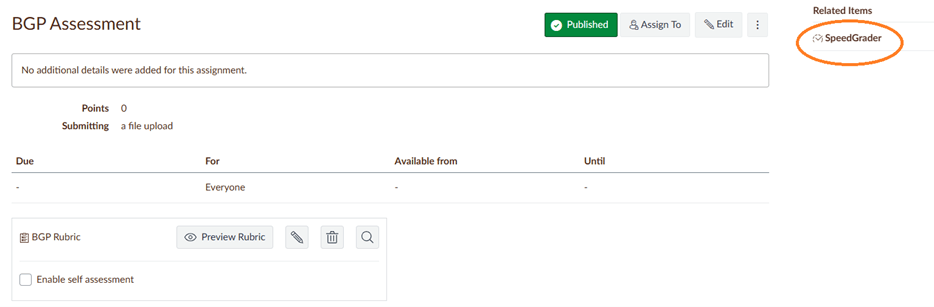
- Go to the assignment that is for the BGP assessment.
- Click on SpeedGrader.
*The assignment must be published for SpeedGrader to be accessible.
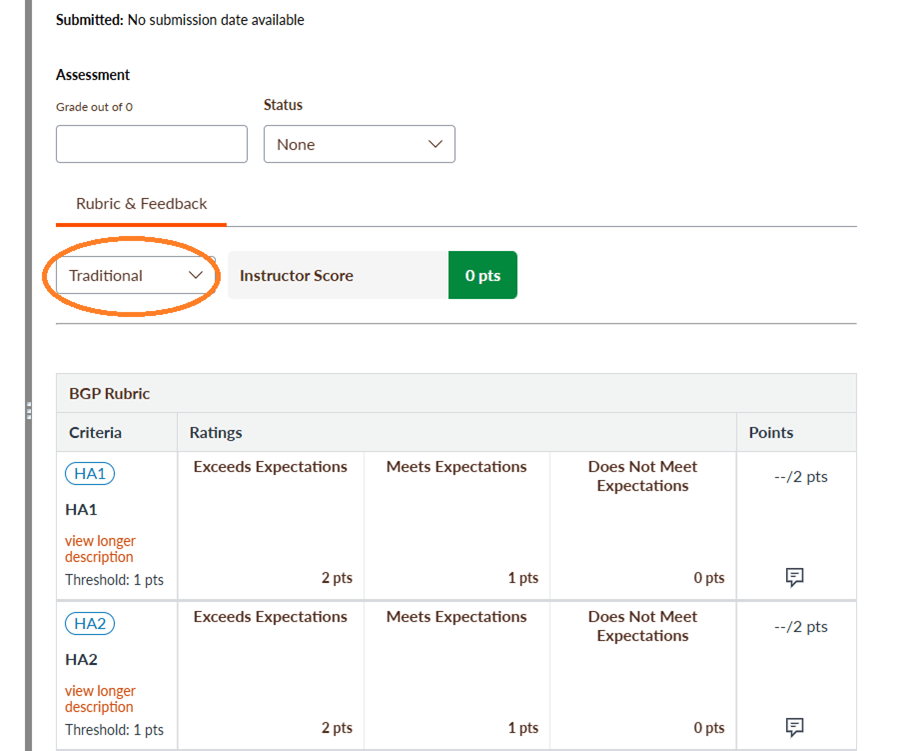
- Change the rubric view to “Traditional” to view the rubric in its entirety.
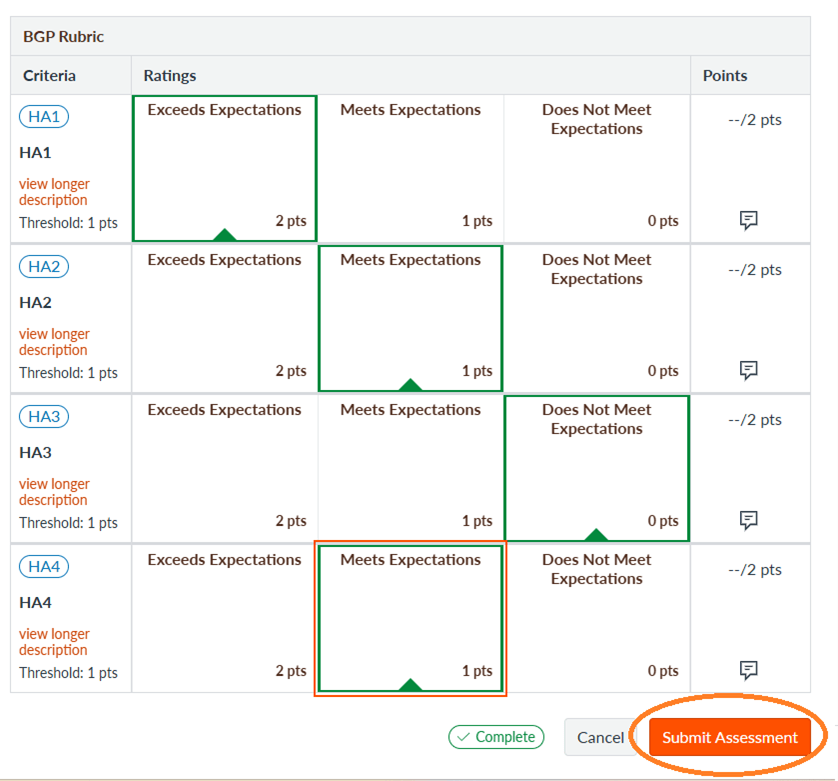
- Select the corresponding domain LO ratings (i.e., exceeds expectations, meets expectations, does not meet expectations).
* If a student did not complete the assessment, please leave all domain LO ratings blank. - Click on the “Submit Assessment” button.
- Click on the arrow after the student’s name at the top of the page.
*By selecting the ratings, clicking “Submit Assessment,” and clicking the arrow after the student’s name, you are submitting the BGP domain LO assessment data.

Please contact the Office of Academic Assessment at assessment@bgsu.edu if you have any questions.
Updated: 04/23/2026 01:06PM