
Linking Learning Outcomes (LOs) to an Existing Quiz Without a Rubric
1. After the BGP domain LOs are imported, go to “Quizzes” and select quiz used for the BPG assessment.
2. In a Classic Quiz:
a. click on “+ Create Rubric”.
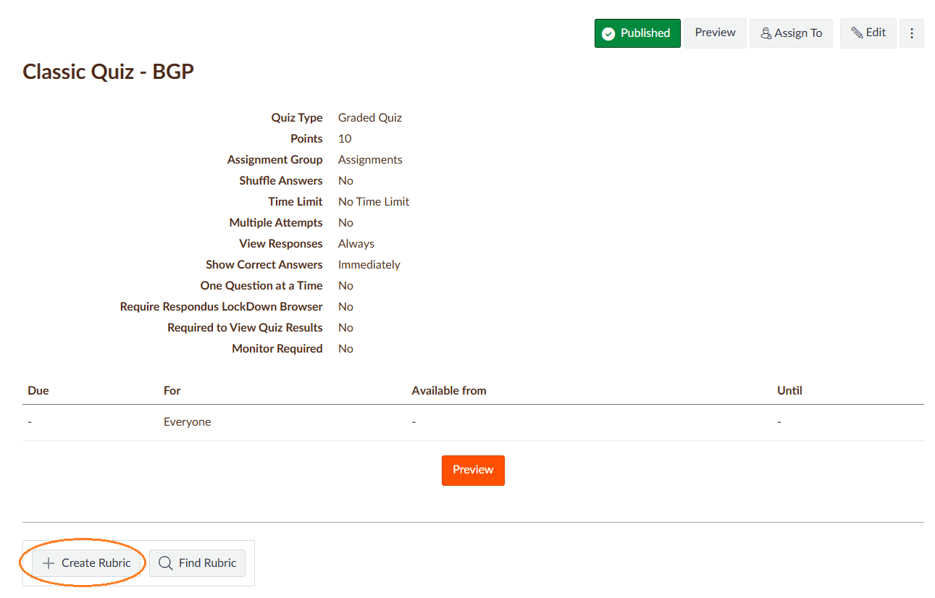
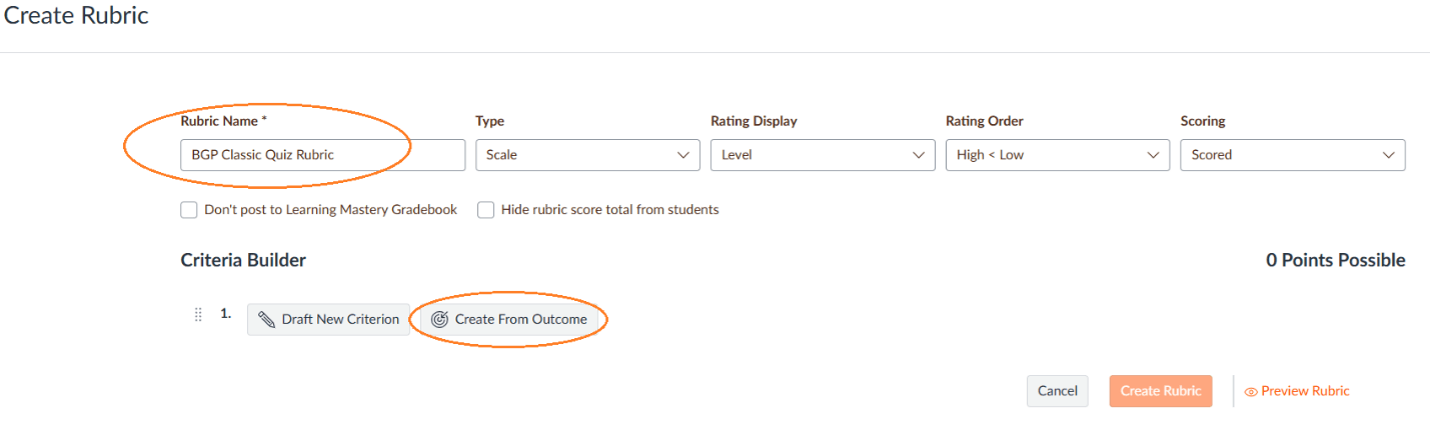
b. Give the rubric a title.
c. Select "Create Form Outcome".
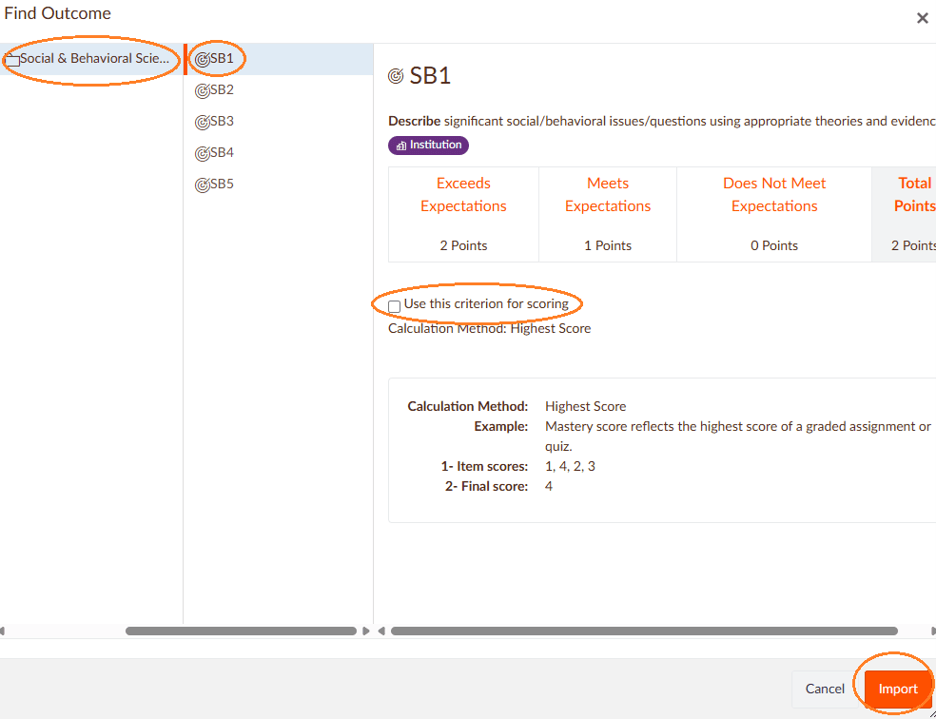
d. Click on the BGP domain LO folder. (In this quiz example, it is Social and Behavioral Sciences). The domain LOs will appear.
e. Select the domain LOs you want to include, one at a time.
f. When a domain LO is selected, uncheck “Use this criterion for scoring.” By unchecking this box, the ratings will be used solely for assessment purposes and the points will not be assigned.
g. Click on “Import.”
h. Repeat steps c. through g. for all the domain LOs you want to include in the rubric.
k. Click on the “Create Rubric” button.
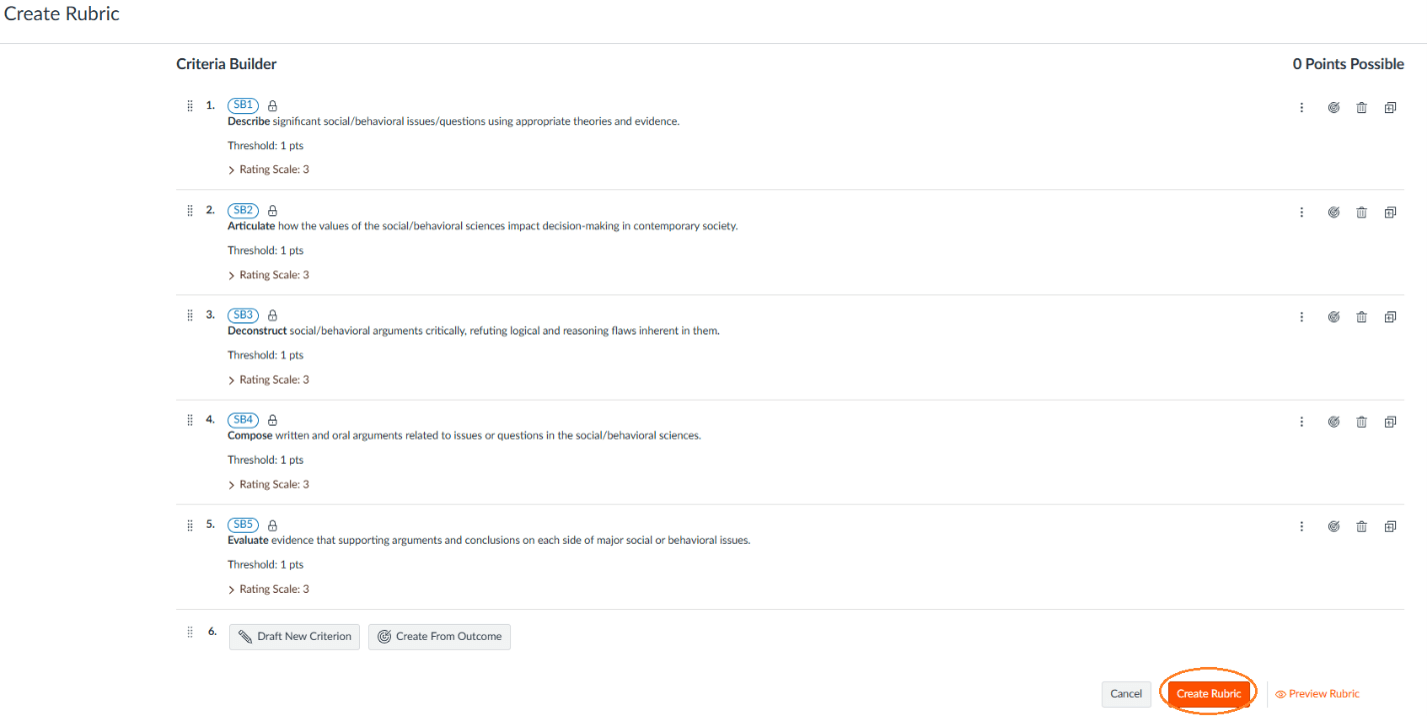
You now have an assessment rubric for your BGP classic quiz.
*There are no points associated with the BGP domain LOs. Also, rubrics within quizzes will not automatically assess the domain LOs. You will need to select the ratings individually
3. In a New Quiz:
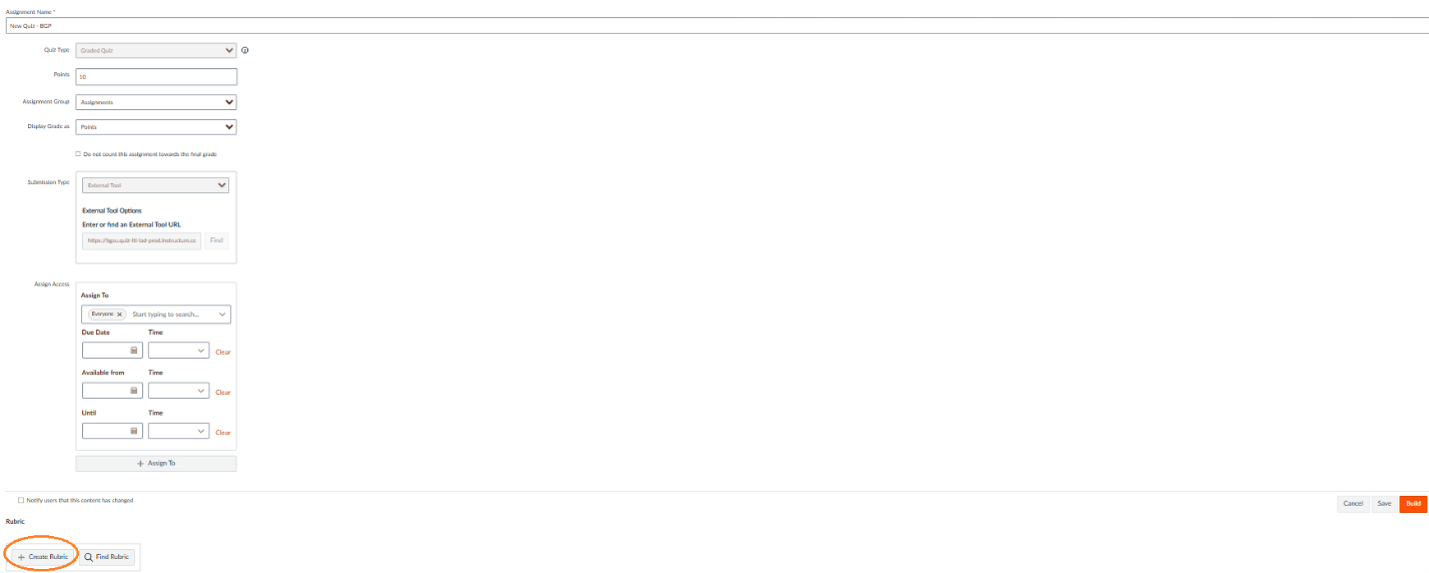
a. Scroll to the bottom on the page and click on “+ Create Rubric” button.
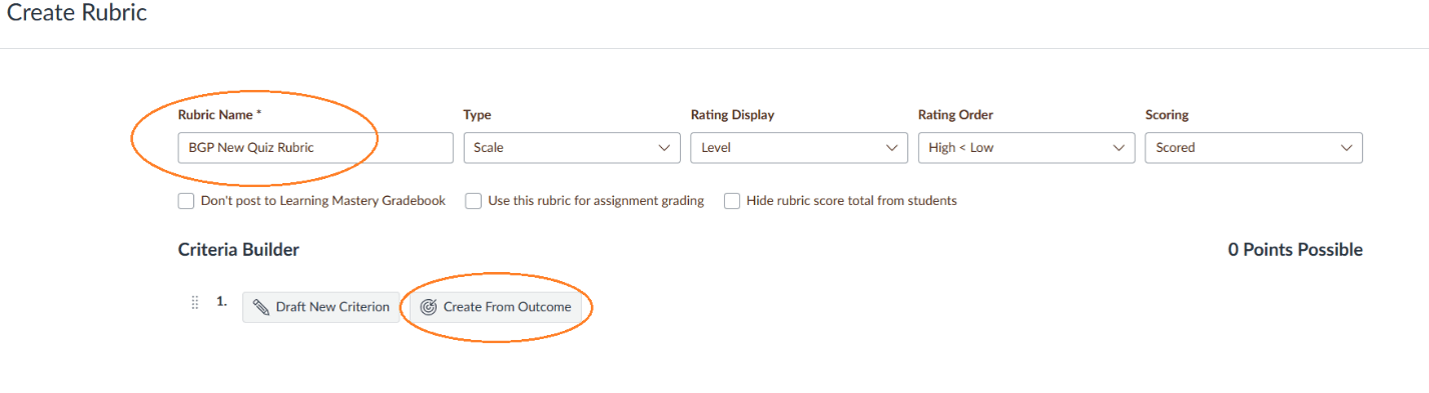
b. Give the rubric a title.
c. Select “Create From Outcome.”
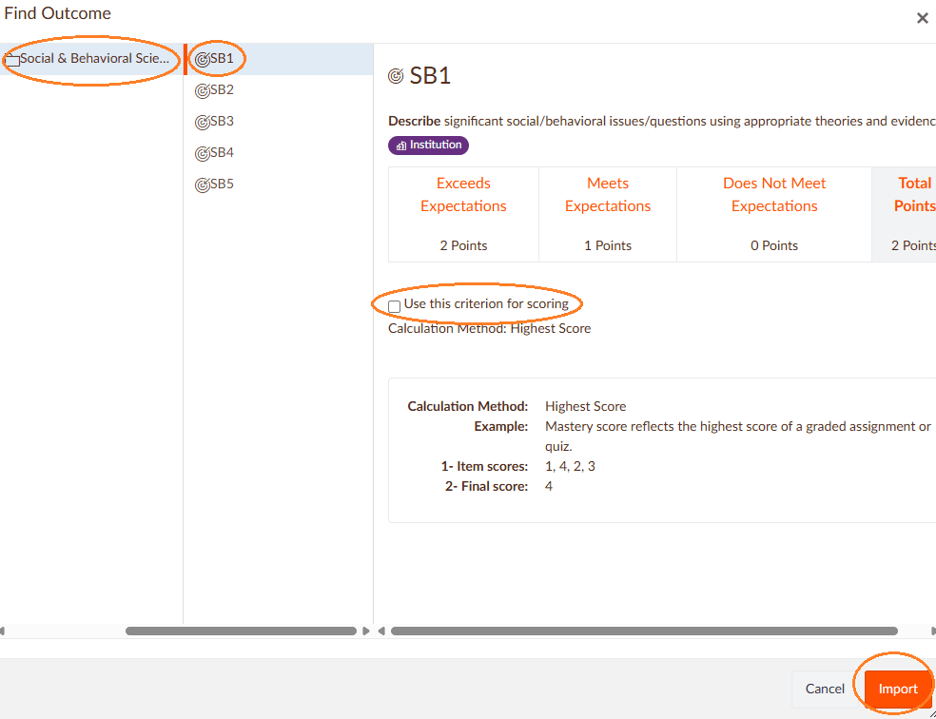
d. Click on the BGP domain LO folder. (In this quiz example, it is Social and Behavioral Sciences). The domain LOs will appear.
e. Select the domain LOs you want to include, one at a time.
f. When a domain LO is selected, uncheck “Use this criterion for scoring.” By unchecking this box, the ratings will be used solely for assessment purposes and the points will not be assigned.
g. Click on “Import.”
h. Repeat steps c. through g. for all the domain LOs you want to include in the existing grading rubric.
i. Click on the “Create Rubric” button.
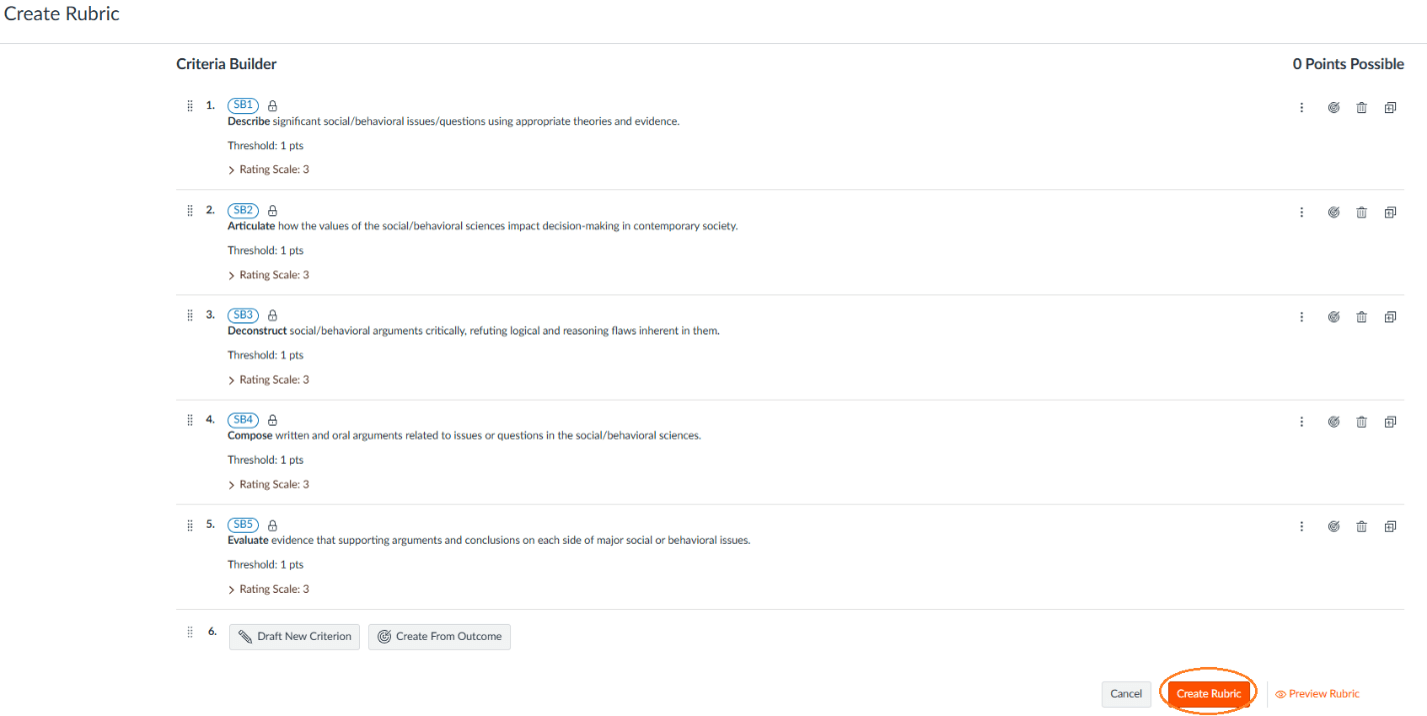
You now have an assessment rubric for your BGP new quiz.
*There are no points associated with the BGP domain LOs. Also, rubrics within quizzes will not automatically assess the domain LOs. You will need to select the ratings individually.
Please contact the Office of Academic Assessment at assessment@bgsu.edu if you have any questions.
Updated: 08/06/2026 01:28PM