
Digital Course Accessibility Resources
Designing for everyone in mind, your guide to digital accessibility
The Center for Faculty Excellence has brought together practical tools, guides, and strategies to help you create digital course content that is accessible for everyone.
Why does digital course accessibility matter?
Digital accessibility is about designing course materials and learning experiences so that all students can engage fully and effectively. While accessibility is essential for students with documented disabilities, it also benefits students who have not disclosed disabilities, students with temporary or situational challenges (e.g., illness, concussion, caregiving responsibilities), multilingual learners, and students who simply learn best using tools like captions, screen readers, or flexible formats. In practice, accessibility improves clarity, usability, and learning for everyone.
Proactive approaches to accessibility—such as providing captions, using clear document structure, and offering multiple ways to engage with content—align closely with evidence-based teaching practices like Universal Design for Learning (UDL). Research consistently shows that when courses are designed with flexibility and access in mind, students experience improved comprehension, reduced cognitive load, and greater persistence (CAST, 2018). Importantly, many students who benefit from accessibility features never formally request accommodations; meaning accessible design often reaches learners who might otherwise be overlooked.
As a public institution, Bowling Green State University is legally obligated under the Americans with Disabilities Act (ADA) Title II. to make its web content and digital services accessible. New federal regulations require that state and local governments bring web content and mobile apps into conformance with the Web Content Accessibility Guidelines (WCAG) version 2.1 Level AA by April 26, 2027 (see ADA.gov). This means that the University must align its digital infrastructure, course design, and Learning Management System (LMS) practices with these accessibility standards.
Course & Content Accessibility Repository
Build your accessibility tool kit
The CFE has developed a resource repository in Canvas with a range of information to help instructors remediate and create accessible digital course content. The repository is self-enroll and self-paced for customizable learning paths. Whether you for need to start at the beginning with the basics, or need a refresher on something specific; this repository has something for you!
YuJa: Your course accessibility assistant
BGSU faculty and staff have access to the tool, YuJa. YuJa provides guided assistance in remediating documents, or course content. YuJa supports our digital accessibility efforts and is aligned with WCAG 2.1Level AA requirements. The tool also allows the creation of alternative formats to meet the needs of learners with varying learning needs and styles.
YuJa Doc Hub
YuJa Doc Hub is designed to support remediation efforts for digital materials such as: DOCs, PDFs, or PPTs.
Ideal for:
- Non course materials
- Staff
- Internal documentation
Use your BGSU credentials through Single Sign-On.
YuJa Panorama
YuJa Panorama is designed to support remediation efforts for digital course materials located in Canvas.
Ideal for:
- Course materials
- Instructors
- For sharing with students via Canvas
Find 'YuJa Panorama' in the left navigation menu of a Canvas shell.
YuJa: Support Resources
YuJa Doc Hub and Panorama scan documents or course content to find common accessibility errors. These common errors include, but are not limited to, the following:
- Missing alternative text
- Inaccessible color contrasting
- Improprer document structure, ie: heading1, heading 2
- Missing table headers and captions
- Non-descriptive hyperlinks
Yuja Doc Hub and Panorama will both score the accessibility of your documents of course content using the following recognized icons:
- Blue circle icon: Accessibility icon (Student View)
- Green hexagon icon: High accessibility scores
- Yellow triangle icon: Medium accessibility scores
- Red hexagon icon: Low accessibility scores
- Grey prohibition icon: No accessibility score assigned, does not effect overall YuJa Panorama Course Report score.
- Purple circle icon: The file is being processed for accessibility
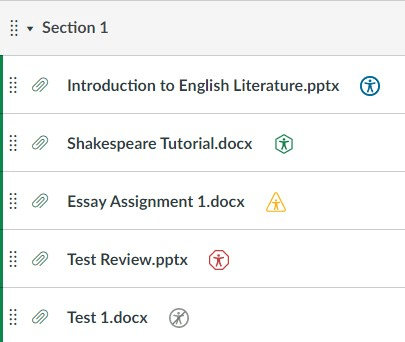
Image Source: LMS Accessibility Overview
From the Course Report, you can view the following analytics:
- Overall Score: The sum of all your course materials and a holistic view of the accessibility of your course.
- Total Files Processed: The total number of files that have been scanned.
- Total Remediations: The total number of remediations completed by you.
- Alternative Formats Downloaded: The total number of alternative formats generated by students or you.
- Accessibility Score Graph/Table: A visual breakdown of the types of documents and content in your course.
- Document Type: A visual breakdown of the types of documents that have been processed by Panorama and the number of alternative formats downloaded by students.
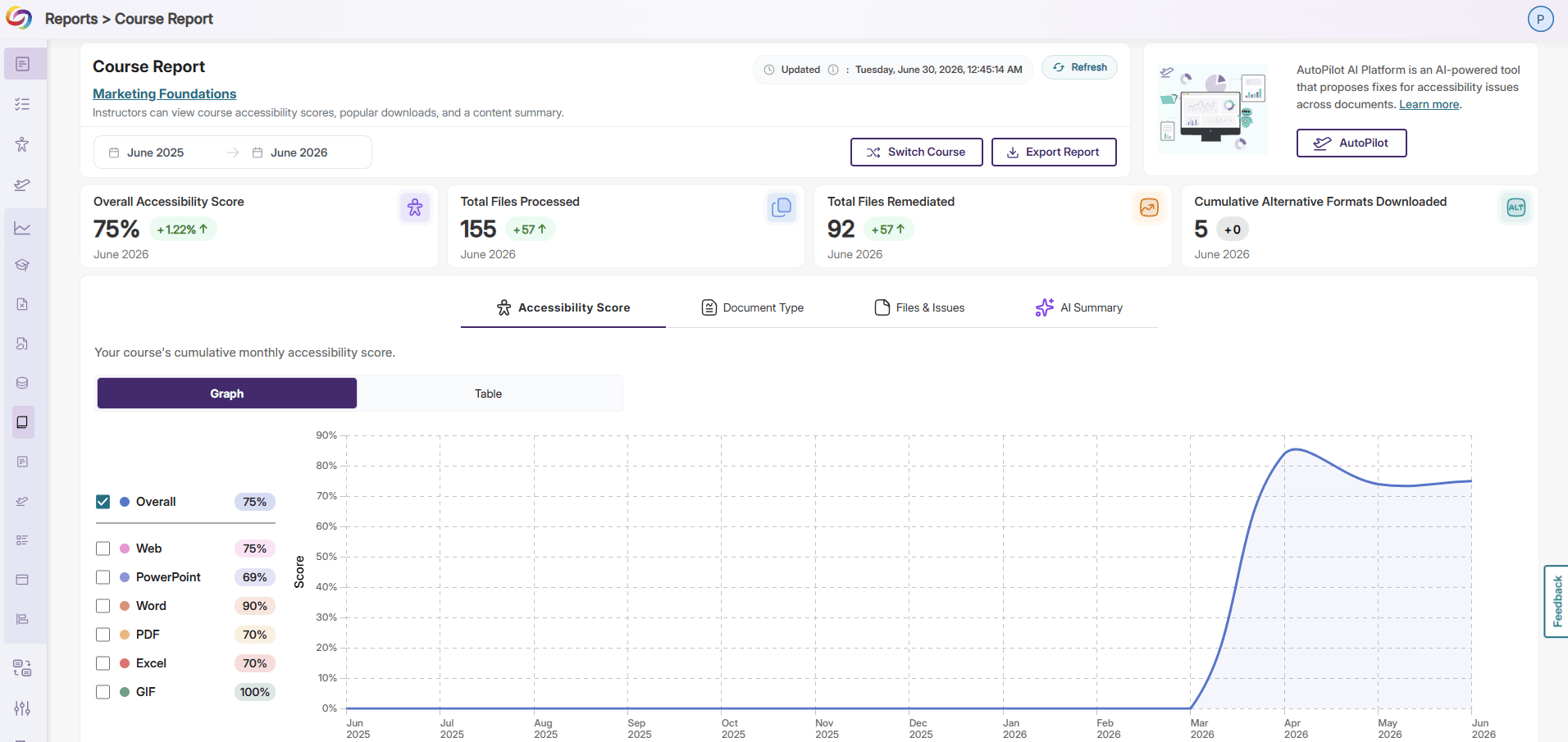
Image Source: Understanding Reports by YuJa
For more information on the Course Report, visit the Course Report webpage.
For more information on the Doc Hub Report, visit the Doc Hub Report webpage.
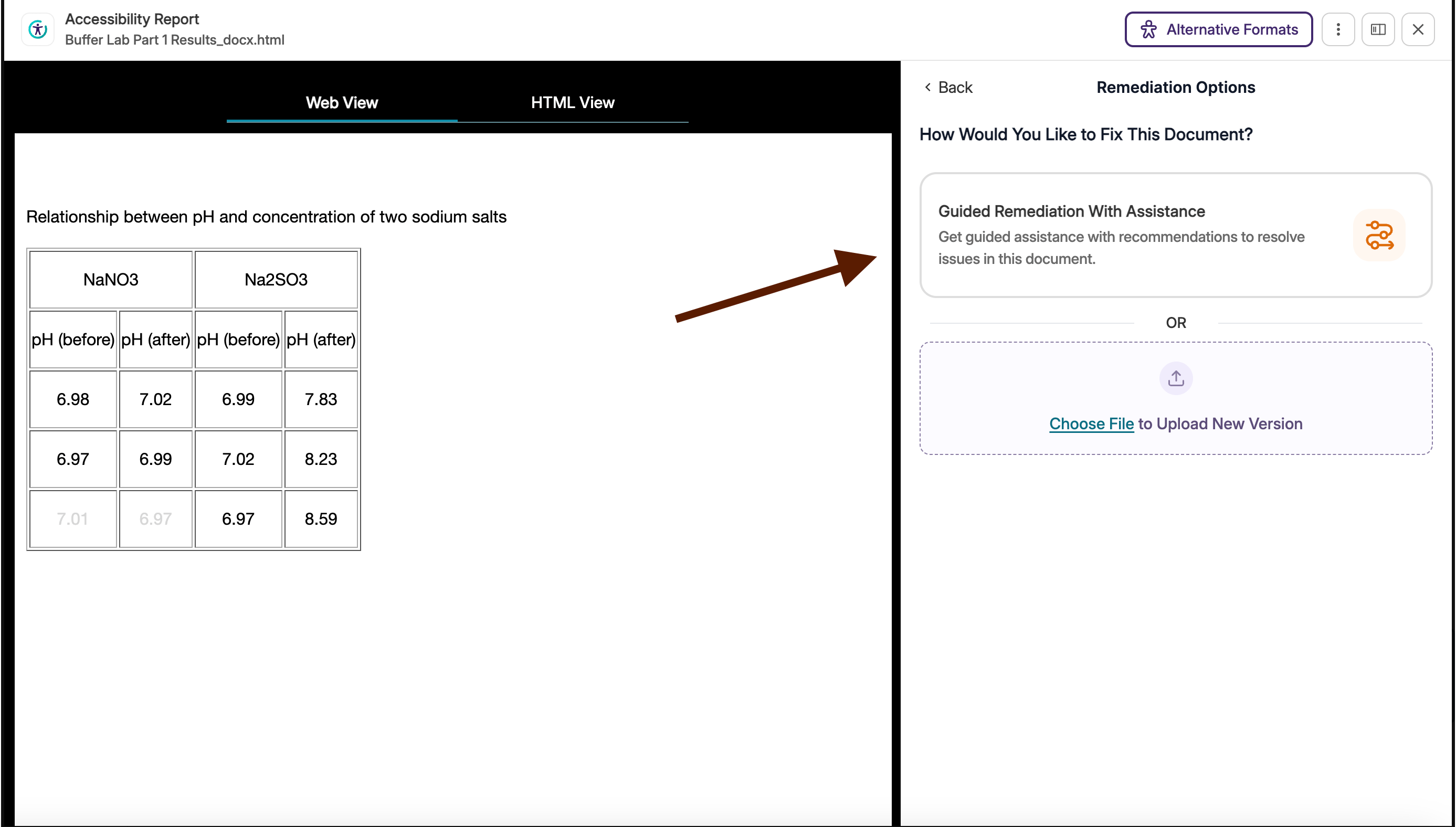
The most user-friendly and straight-forward way to make remediations to your course materials with YuJa Panorama, or your digital documents with YuJa Doc Hub is to use the 'Guided Assistance' workflow to make changes directly to your documents. This recommended workflow for using the tool is as followed:
- Select to 'Fix Document' or 'Fix Issues' for any accessibility issue that's been flagged.
- Work through the remediation suggestions.
- 'Select fixes' as your final confirmation of the remediations.
- Watch as the accessibility score of your documents increase!
- Download the newly accessible format to replace any document on your device.
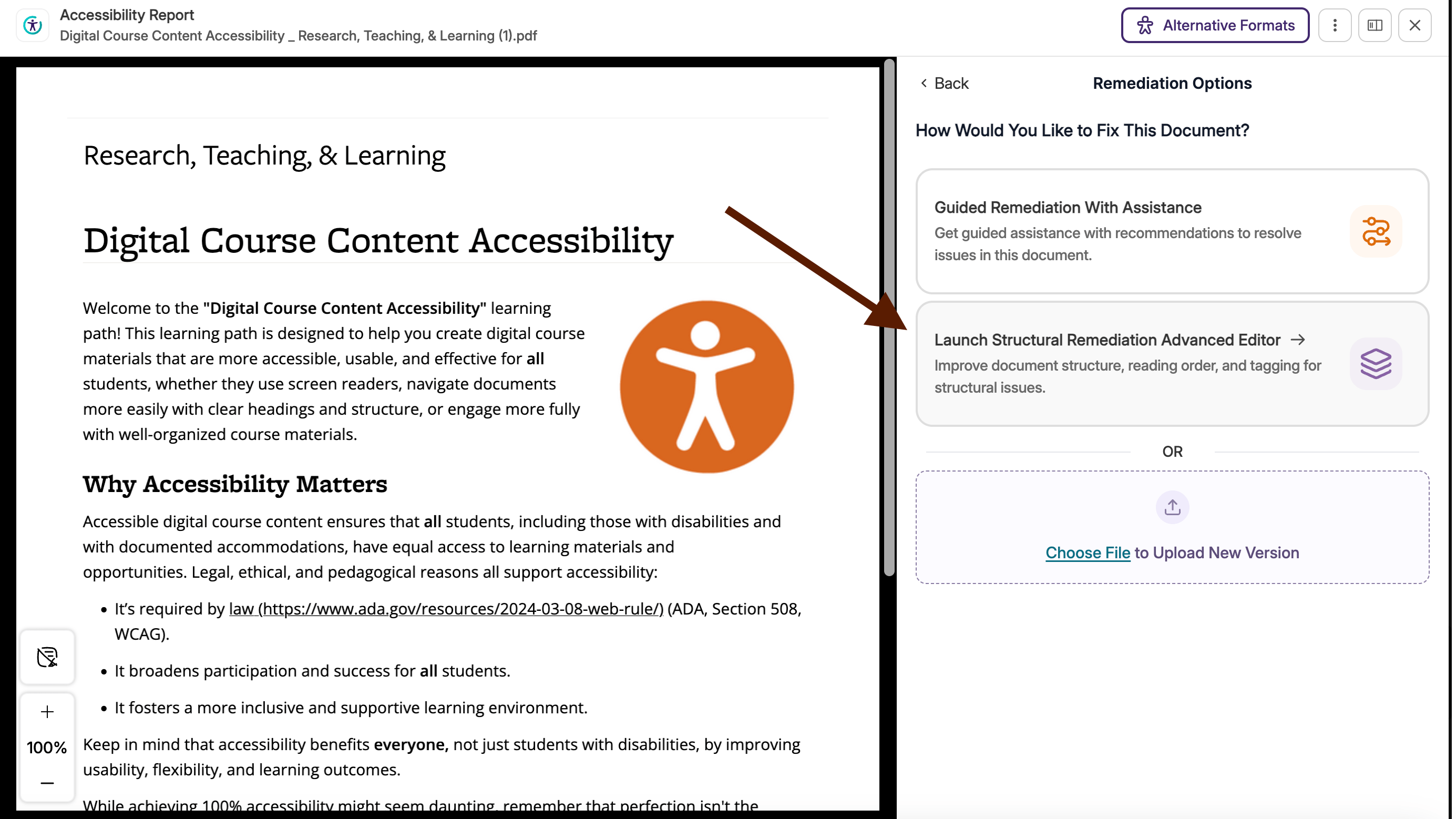
One way to remediate documents with more complex issues is to use the Structural Remediation option. This workflow will:
- Tag your PDF Documents to provide the essential structure needed to improve accessibility for anyone using assistive technologies like screen readers.
- Turn scanned documents and image-based PDFs into tagged documents.
- Help you resolve complex accessibility issues in PDFs related to document structure.
You can replace documents inside Doc Hub or Panorama with Alternative Formats that have been generated by Panorama. When documents are replaced, they will be rescanned to gauge their accessibility score. The alternative formats in Doc Hub and Panorama include, but are not limited to, the following formats:
- PDF with OCR
- HTML text
- Audio/ Podcast File
- Gradient Reader
- Braille
For more information on generating alternative formats, visit the How to generate an Alternative Format with Panorama webpage.
For more information on replacing or updating original inaccessible version with more accessible alternative formats, visit the How to Update a Document with Its Alternative Format webpage.
- Do you need a library resource made accessible?
- Email LibAnswers Accessibility
- Do you want to explore accessible Open Education Resources (OER)
- Email Tim Sandusky
- How do I find time to make accessibility changes.
- Start now; don't wait for a deadline.
- Understand that accessibility increases access for all learners.
- Work sequentially.
- Aim to start with the 'severe' and 'major' issues that are flagged in YuJa. Theses issues will have the biggest impact on access.
- How can I auto-generate captions on videos or .mp4s?
- Canvas Studio has auto-captioning capabilities
- Microsoft Clipchamp has auto-captioning capabilities
- Upload video as unlisted to YouTube and share the hyperlink
Good news: When you copy a Canvas course to a new semester, your YuJa Panorama accessibility improvements will carry over. The key is to make those improvements in the course you plan to copy. If you use a shell or template course as your starting point each semester, update your accessible course materials there so your work carries forward.
Microsoft products have a built-in accessibility assistant that can address many of the common accessibility issues. To find and an activate the accessibility assistant, locate the 'View' tab in the navigation ribbon, the find the 'Check Accessibility' button. View the right side panel information and guided assistance to fix any accessibility issues. It's also still recommended to upload materials to Doc Hub for a fully comprehensive check.

Updated: 10/23/2026 03:15PM