
Word Tips and Tricks
Microsoft Word Tips & Tricks
UNDO: Press Ctrl and z to undo the last thing you did. You can press Ctrl and z repeatedly if you want to undo multiple actions. Usually, Word can undo up to 100 actions.
REDO: Press Ctrl and y to redo something you have undone.
COPY: Press Ctrl and c to copy something.
PASTE: Press Ctrl and v to paste something.
EM DASH (the long dash): If you have a keyboard with a 10 key (the numbers on the right side of the keyboard shown in Figures 1 and 2) on a Windows machine you can press Ctrl and Alt and the hyphen above the 10 key and on the far right of the keyboard. On a Mac press Option and Command and the hyphen above the 10 key and on the far right of the keyboard. Another option on a Windows machine, press and hold down the Alt key and type 0151 then release the Alt key.
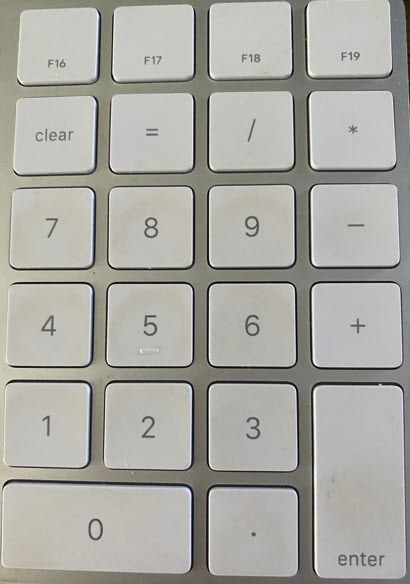
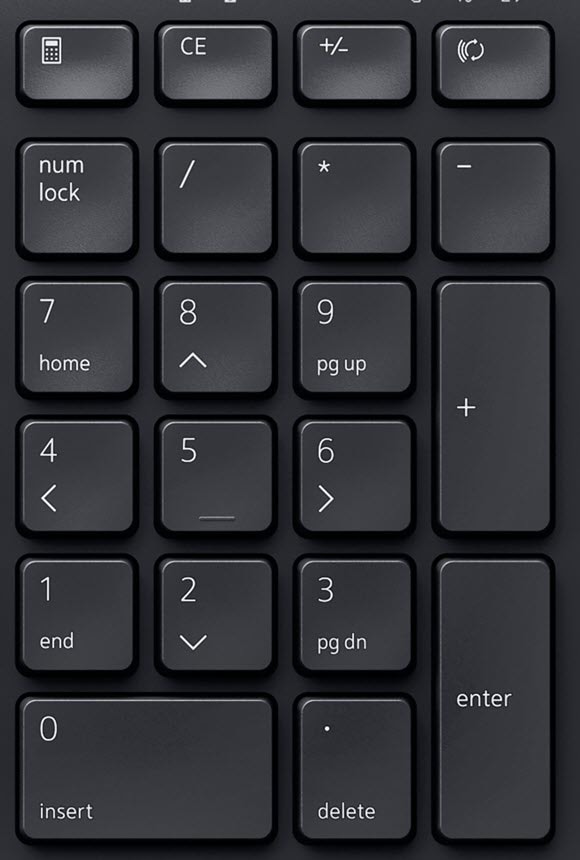
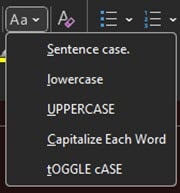
CHANGE CAPITALIZATION: Click and drag over the text you want to change. Go to the Home tab and click the Aa button indicated by the yellow oval in Figure 3. Choose the capitalization option you need (Figure 4).

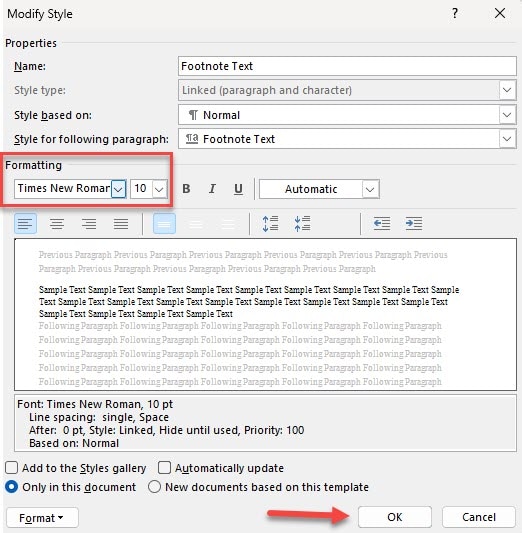
FORMAT FOOTNOTES: They need to be Times New Roman and a 10-point size font for your thesis or dissertation. Press Ctrl and Shift and s to open the Apply Styles dialog shown in Figure 5 below.
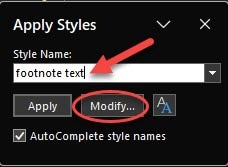
Type Footnote text (indicated by the red arrow above) in the box and click the Modify button (indicated with a red circle). You will now see a new pop-up menu called Modify Style (see figure 6 below). make sure Formatting has Times new roman and 10 point size font selected (see the red square). Click OK in the lower right corner.
TURN PAGE LANDSCAPE: Go to the Layout menu. Click on Breaks. Scroll down to Section Breaks. Click Next Page.

On the new blank page, make sure you are still in the Layout menu. Click on Orientation. Select Landscape from the dropdown menu.
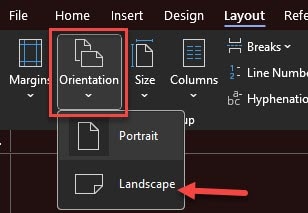
When you are ready to turn the pages back to portrait, go to the Layout menu. Click on Breaks. Scroll down to Section Breaks. Click Next Page (Figure 7). On the new blank page, make sure you are still in the Layout menu. Click on Orientation (Figure 8). Select Portrait from the dropdown menu. Because of the page breaks, your page numbers will start to renumber.
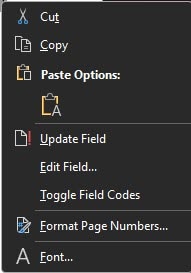
PAGE NUMBERS: To change the page number, highlight the incorrect page number then right click on the page number to see the menu shown in Figure 9. Select Format Page Numbers.
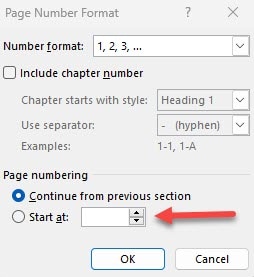
You should now see Figure 10 below. Go to Start at: indicated by the red arrow. Use the up and down arrows to select the correct page number.
DICTATE TEXT: You can dictate text into Microsoft Word. In the Home tab, at the far right indicated below in red, you will see the Dictate tool. Click on it and select Dictate. You can also select Transcribe and Upload audio or Start recording.
You may need to give Microsoft Word permission to access your PC’s microphone.

Updated: 02/06/2026 09:45PM