
Acrobat Pro Instructions
- Combine Files
- Embedding Fonts
- Creating Bookmarks
- Setting the Document Properties
- Edit PDF
- Organize Pages
- Add Rich Media
- Making Document Accessible
- LaTeX and Accessibility
Combine Files
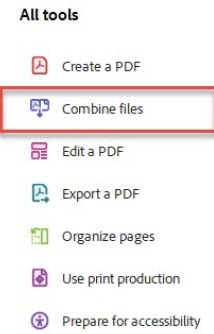
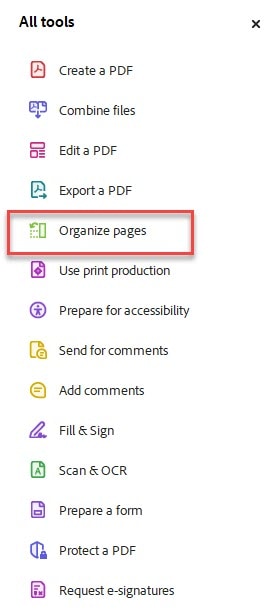
1. Open Acrobat Professional DC. Make sure you are on the All tools menu in the upper left. Click on Combine files as shown in the red rectangle in Figure 1.
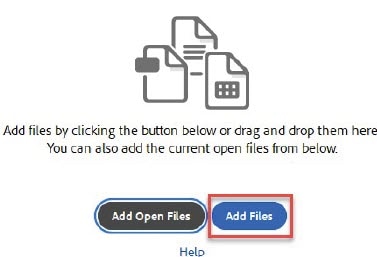
2. Next click on Add Files see Figure 2 below. Add the files in the order you want them to appear in your final document (i.e., title page, template, appendices). Then click Combine in the upper right corner of Acrobat Pro DC. See Figure 3 below. If you accidentally add them in the wrong order and you have already combined the files, you can go to Organize pages in the All tools menu to move the thumbnail of the page(s) in to the correct order. Remember to click Menu and Save As and title your document appropriately. We recommend you name it using your last name and the date or a version number.

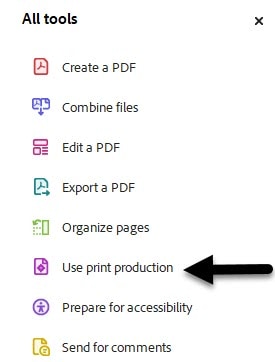
2. You should now see the screen i Figure 5 shown below. Click on Preflight.
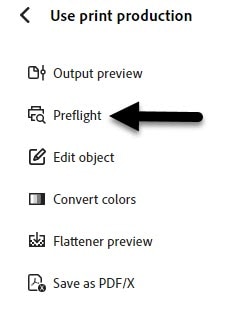
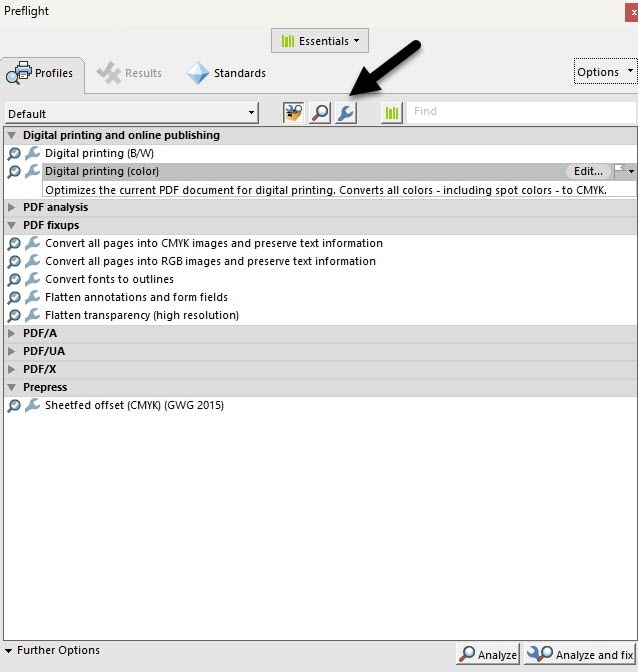
3. Click on the Wrench icon indicated by the red arrow in Figure 6 shown below.
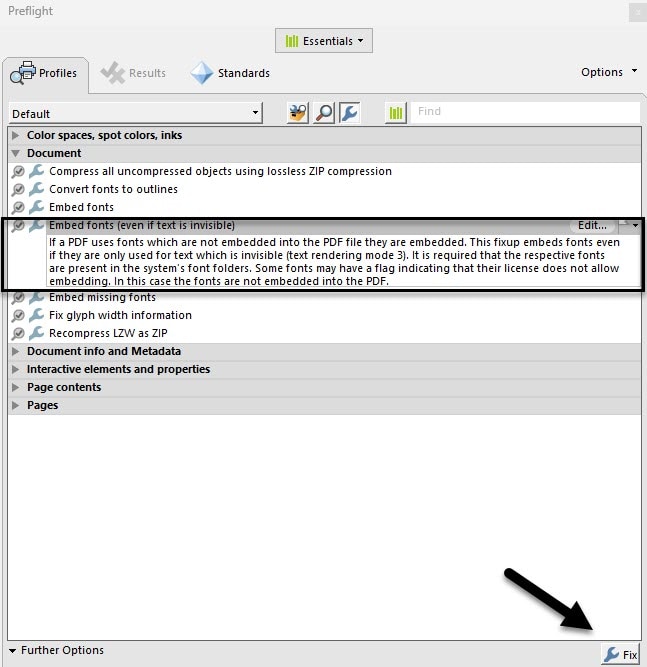
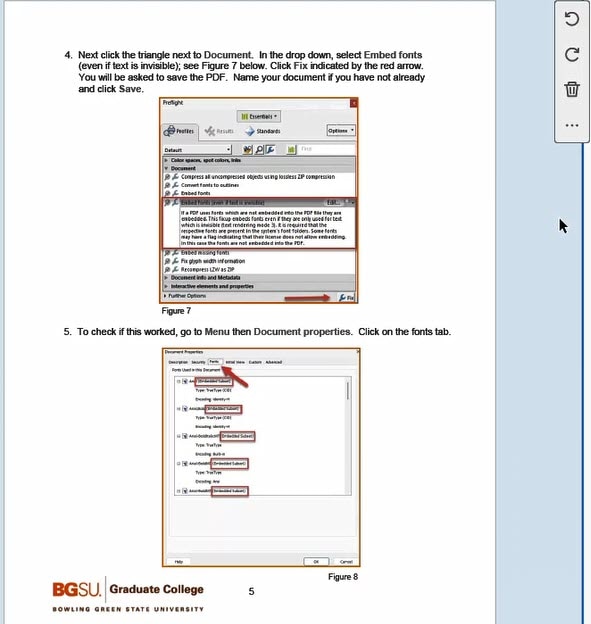
4. Next, click the triangle next to Document. In the drop down, select Embed fonts (even if text is invisible); see Figure 7 below. Click Fix indicated by the arrow. You will be asked to save the PDF. Name your document if you have not already and click Save.
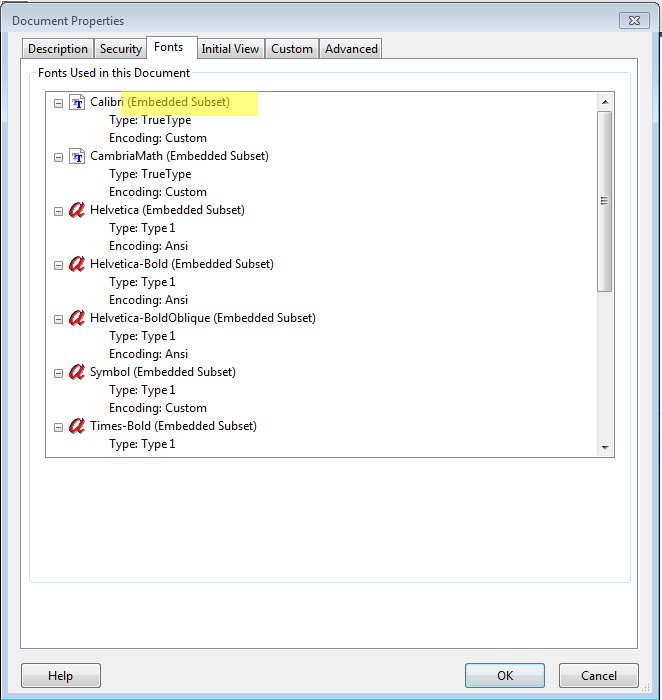
5. To check if this worked, go to Menu then Document properties. Click on the fonts tab.
Sometimes on a Windows machine, you are not able to embed the fonts as described in this section. To fix this, follow these steps:
- Under the Menu section in the upper left of the screen where you see 3 lines, click on it and select Preferences.
- Select Security (Enhanced).
- Deselect "Enable Protected Mode at startup" and deselect "Enable Enhanced Security." Click OK at the bottom of the window.
- Shut down Adobe Acrobat Pro DC and then reopen the program.
- Return to the Security (Enhanced) window by repeating the first two bullet points in this section.
- Reselect "Enable Protected Mode at startup" and reselect "Enable Enhandced Security." Click OK at the bottom of the window.
- Shut down Adobe Acrobat Pro DC and then reopen the program. The issue should now be resolved.
Creating Bookmarks
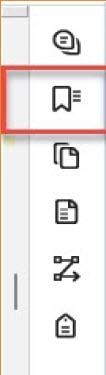
1. Click on the side bar on the right hand side of the program. Then click on the ribbon bookmark indicated by the red square. See Figure 9.
2. Any bookmarks auatomatically created will be displayed like Figure 10. Next, click on the Bookmark icon with the plus sign indicated by the red arrow.
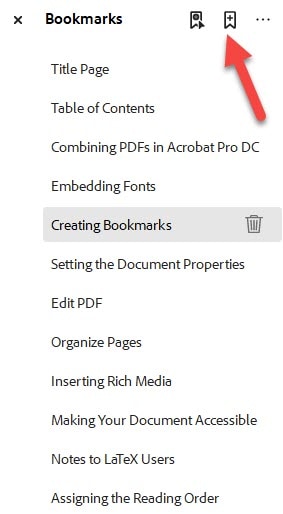
3. Only first level headings are to be bookmarked. Make sure you are at the top of the page that the first level heading is located on. Type the name of the bookmark and hit enter. If you accidentally create a bookmark or bookmark something that should not be bookmarked, you can delete the bookmark by clicking the trash can next to that bookmark.
4. Repeat steps 2 and 3 for each bookmark you create.
2. You should now see the pop up window shown below (Figure 12). Click the Description tab.
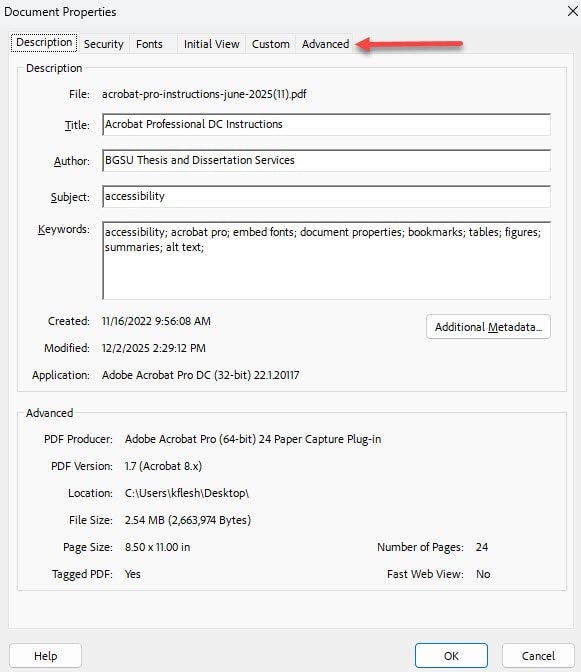
3. Fill in the correct information for the Title, Author, Subject and Keywords. Make sure to separate the keywords with semi colons. Please type your title in either "Title Case" or "Sentence Case". This will allow you to copy and paste the information into OhioLINK correctly. Once you have entered all of the required information, click OK in the bottom right of the screen.
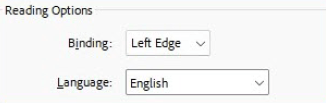
4. Next, click the Advanced tab indicated by the red arrow in the figure above. Here you will set the language of your document. See Figure 13 below.
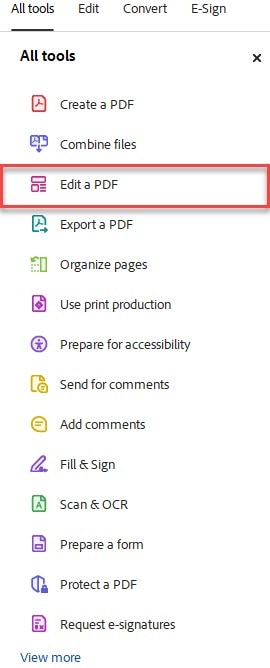
2. Once you click Edit a PDF, you should now see Figure 15 below.
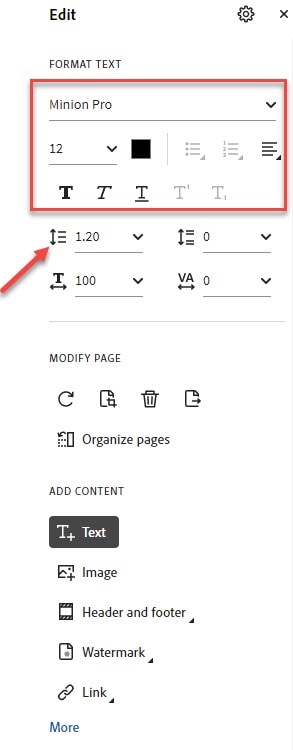
3. Text allows you to change a misspelled word or add text like the heading for an appendix or a page number.
4. At the top you can select the font, font size, bold, italic, and underline.
5. The red arrow points to where you select the spacing between the lines of text (e.g., single or double space).
6. Image allows you to add an image.
7. Link allows you to add an invisible box over a word or phrase and insert a hyperlink. If you have a link and it is not made accessible, you will need to remove it.
Useful Tools
1. Remember, Ctrl Z on a Windows machine or Command Z on a Macintosh, will allow you to undo what you just did.
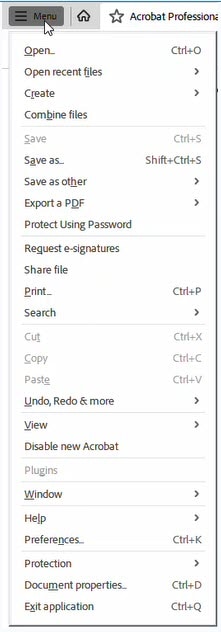
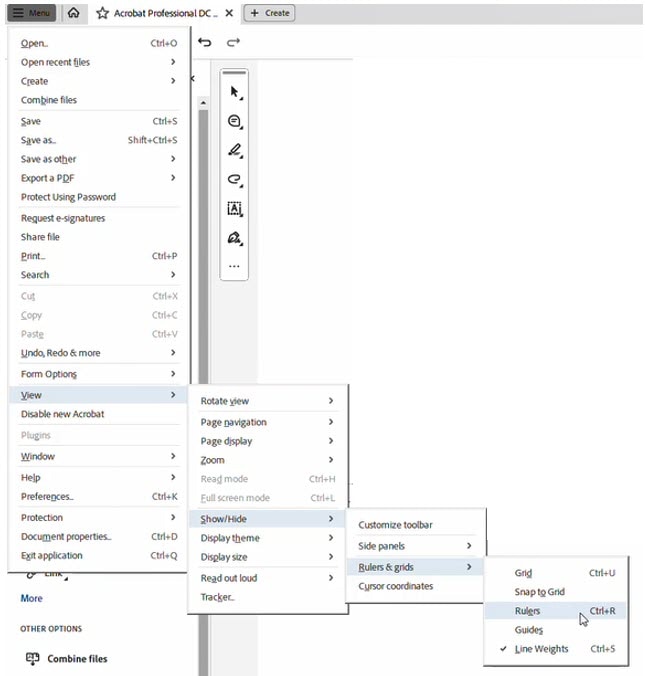
2. To display the rulers, go to the upper left Menu (see Figure 11 under Document properties). Then click View, Show/Hide, Rulers & grids, Rulers.
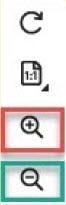
3. To zoom in or out on a page, click the magnifiers on the bottom right of the screen indicated by the red and green squares in Figure 17 below.
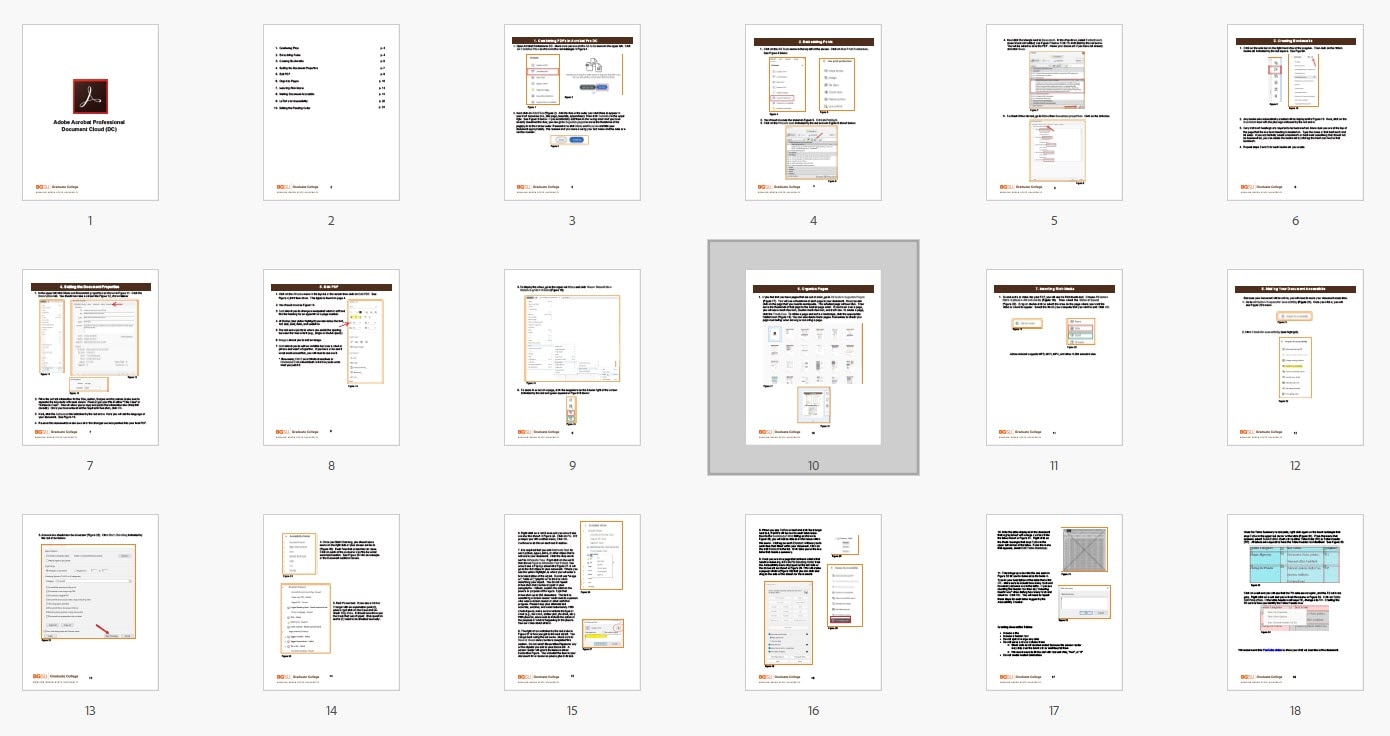
2. Once you click on Organize pages, you will see a thumbnail of each page in your document (Figure 19).
3. Now you can click on the page that you need to manipulate. The selected page wll turn blue. Then move the thumbnail of that page to the desired page order. If you hover over a page, you will see a clockwise icon, counter clockwise icon, and trash can. To delete a page, click the Trash Can. To rotate a page and make it landscape, click the appropriate rotation icon (Figure 20). You can also delete blank pages. Remember to check your page numbering when moving or removing a page.

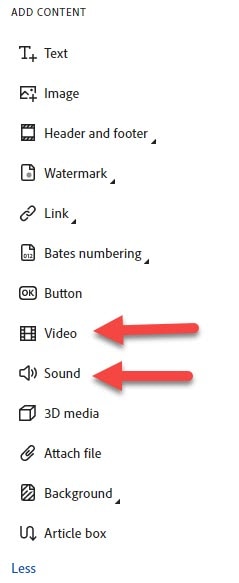
3. Select the appropriate menu item, Video or Sound, see Figure 22 below.
4. Drag or double-click to select the area on the page where you want the video or sound to appear.
5. Select the file on your computer that you want to add. Click OK.

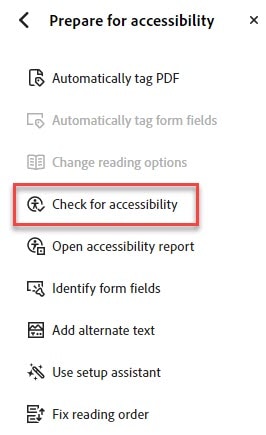
2. Once you click it, you will see the menu below (Figure 24).
3. Click Check for accessibility.
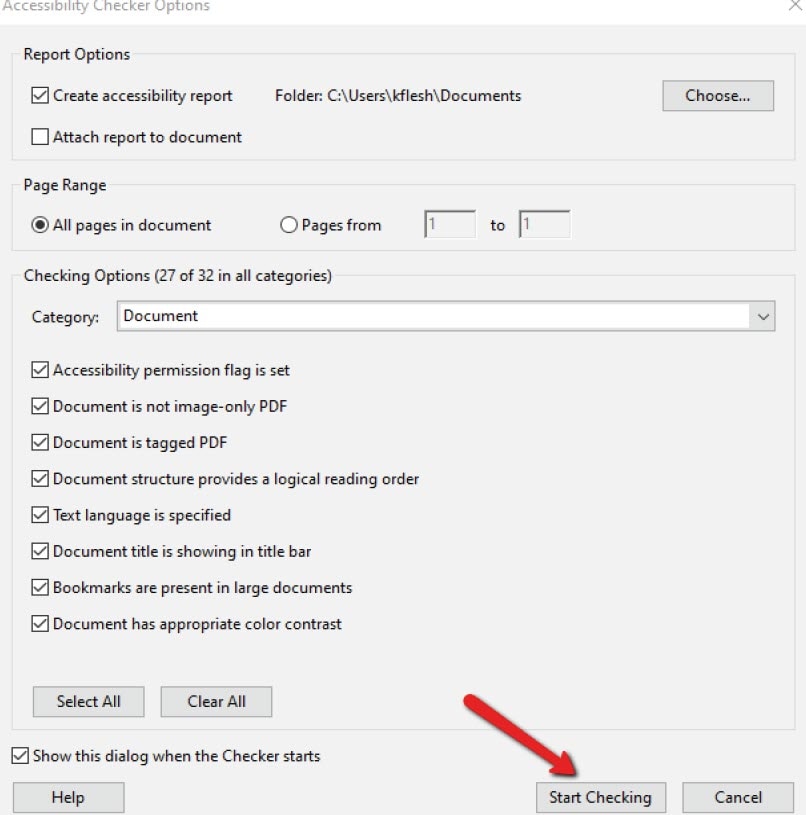
4. A new menu should now be on screen see Figure 25 below. Click Start Checking in the bottom right of this screen.
5. Once you Start Checking, you should see a menu on the right side of your screen simlar to Figure 26 below.
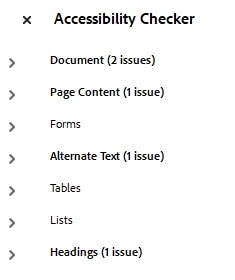
6. Each item that is bold has an issue. Click on each of the arrows to view the list under each bold section. An example of possible problems is shown in Figure 27 below.
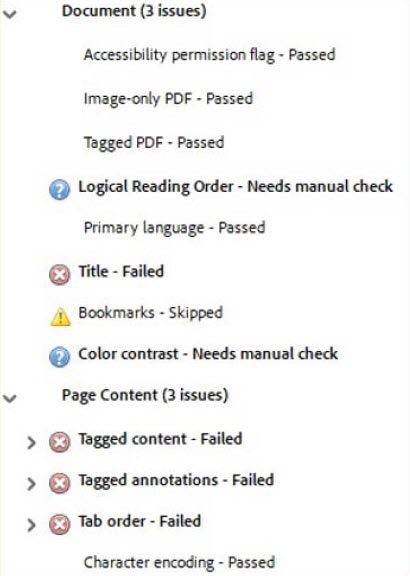
7. Red X's must be fixed. If you see a Yellow Triangle with an explanation point (!), please right click on the issue and uncheck Skip Rule. It should now show you the issue that was skipped. Blue question marks (?) need to be checked manually.
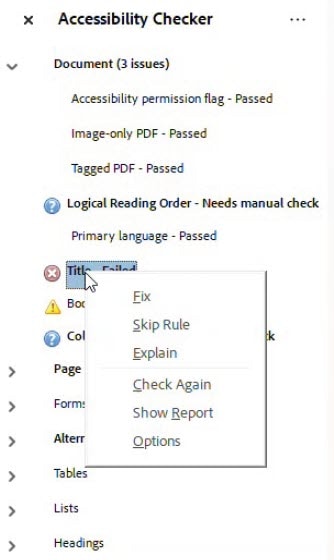
8. Right click on the arrow next to the red X and you should see a menu like shown below in Figure 28. Click Fix. If it prompts you with another menu, click OK. Continue to do this on each red X section.
9. It is required that you add Alternate Text for each picture, figure, logo, or other object that is not text in your document. Click the drop down next to Alternate Text in the Accessibility Checker. Right click on the red X that shows Figures Alternate Text - Failed. You should see a pop up screen like Figure 29 shown below. It will go to the first object in your document. Where you see the yellow highlight, is where you will enter a brief description of the object. Do not use “image of”, “graphic of” or the like when describing your object. You do not repeat information that you have typed in your paragraphs. Instead, explain the action in the picture or purpose of the figure. Type that information up to 255 characters. This text is something a screen reader would read to a person who uses a screen reader or other assistive program. Please keep your alternate text accurate, succinct, and avoid redundancy. With charts/figures, make sure to include the type of chart (e.g., bar chart, scatter plot, pie chart, etc.). With pictures, make sure to include the action or the purpose of what is happening in the picture. See our video about alt text.
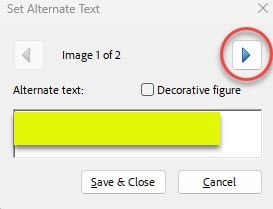
10. The right arrow indicated by the red circle in Figure 29 above is how you get to the next object. You can go back using the left arrow. Make sure to Save & Close once you have completed this section. Do not select Decorative Figure for any of the objects you add to your document. A screen reader will ignore the items marked Decorative Figure. You included the item in your document for a reason so please give it alt text.
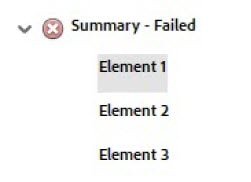
11. When you see Tables in bold and click the triangle next to it, red X's will be next to each table issue. Next to the Summary-Failed listing as shown in Figure 30 below, you will not be able to fix this issue within this menu. Clicking on each Element will take you to each item that failed within your document. Click on the first Element in the list. It will take you to the first table that needs a summary.
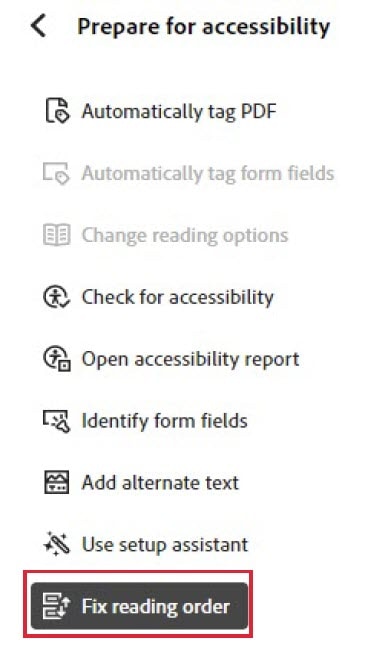
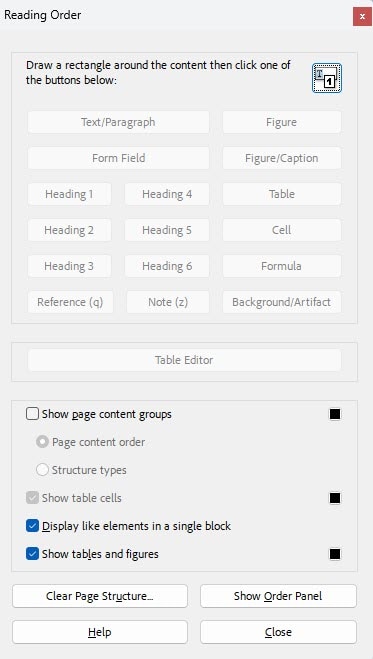
12. Once you are on a page that contains a table that needs a summary, click on Fix reading order from the Accessibility menu displayed on the left side of the screen as shown in Figure 31 below. This will create a pop-up window (Figure 32) that you can click and drag to the side of the screen for the moment.
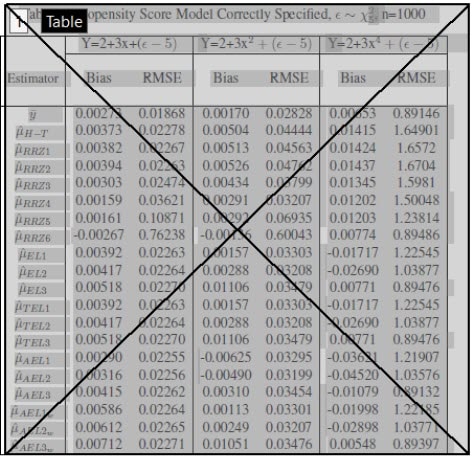
13. Note the table displayed in the document that is grayed out with a large x across it like the table shown in Figure 33. Right click on the black rectangle that says Table in the upper left corner of the table. From the menu that appears, select Edit Table Summary.
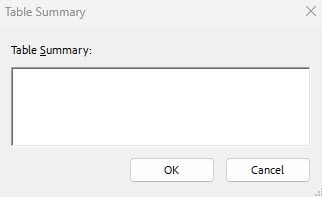
14. This brings up a box like the one seen in Figure 34 below. Table summaries need to include the number of columns and the number of rows "including the header row". Click OK. You will need to repeat these steps for each table flagged by the Accessibility Checker.
Creating Accessible Tables
- Include a title
- Include a header row
- Do not split or merge any cells
- Do not leave a row or column blank
- Blank cells are not recommended because the screen reader may skip over the blank cell or misinterpret them
- We recommend to fill the cell with relevant data, "N/A" or "0"
- Do no create nested cells/tables
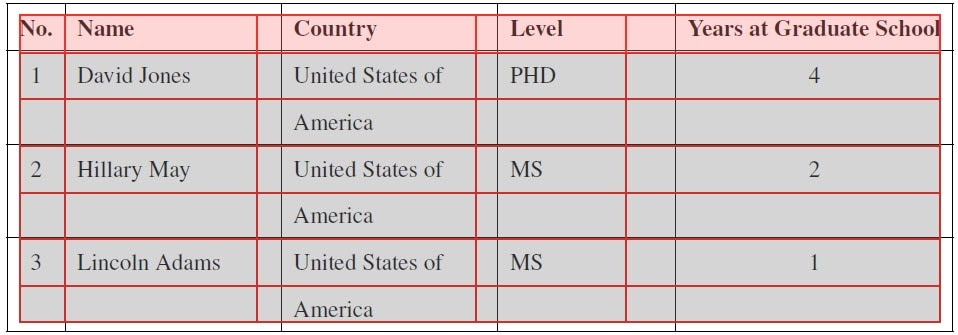
15. Once the Table Summary is complete, right click again on the black rectangle that says Table in the upper left corner of the table (Figure 33). From the menu that appears, select Table Editor. Each cell is either Table Data (TD) or Table Header (TH). All tables are required to have the Table Header row identified. Figure 35 below has the header row in salmon because the cells are already identified as table header (TH) tags. The grey rows are identified as table data (TD) tags.
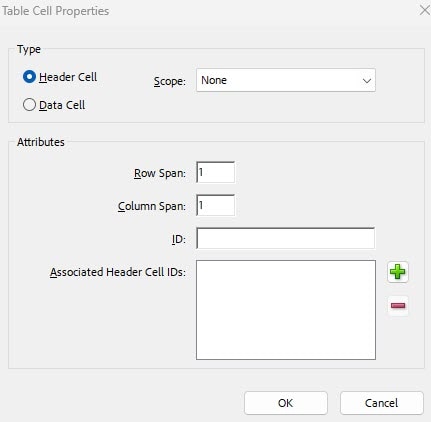
16. Once you right click on a cell while in the Table Editor, you will see Figure 36 below. This is where you select Table Cell Properties. Figure 37 shows where to select Header Cell or Data Cell. Once you select Header or Data for each cell, click OK.

We recommend this YouTube video to show you what we describe in this document.
Notes to LaTeX Users
PDFs created from LaTeX are not automatically read by Adobe Acrobat Pro in a way that is accessible. You will need to take additional steps to make your document accessible.
- While LaTeX PDFs fill in the Document properties for you, you will still need to manually remove the quotation marks around the keywords.
- Remember to never Autotag (Automatically tag PDF) on a LaTeX document. I will cause odd characters in your equations.
- If your equations are not coming up as accessible, please try this Compatible with Math ML and LaTex web page. This is free to use for 30 days.
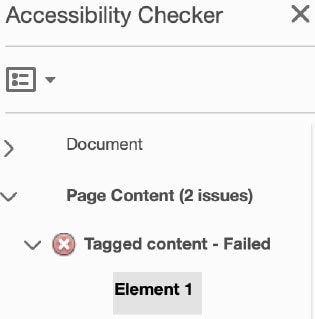
Screen readers need to be told how to read documents. BGSU requires that your figures, tables, and first level headings in your PDF are identified as such. While Acrobat may translate these details without error, it may make errors that you need to correct. If you receive a Tagged content error on your Accessibility Check (Figure 38), Acrobat recognizes that there are unlabeled elements on a page. You will need to label them manually.
1. First click on the Element that is an issue see Figure 38 below. This will take you to the problem in the document.
2. Now on the left of the screen, select Fix reading order. See Figure 31 step 12 under Making Your Document Accessible shown earlier in this document.
3. The pop-up menu is movable. This is also described in Figure 32 step 12 of Making Your Document Accessible.
4. Click on the Element issue(s) under Tagged content to see if it needs tagged as a figure, table, or text.
5. To tag the item you will need to take the mouse which should now look like crosshairs and click in the upper left of the object, then drag it over the entire object from top left to bottom right. It should have a purple/pink rectangle around it if you have selected the item correctly.
6. From the Reading Order pop-up you can click on the appropriate tag Text/Paragraph, Heading 1, Figure, or Table.
7. If it is a Headings issue like shown below in Figure 39, click on the Element, it will take you to the issue in the document.
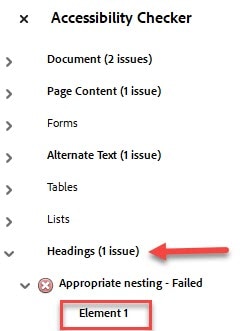
8. To tag the item, take the mouse and click in the upper left of the object, then drag it over the entire heading from top left to bottom right. It will show a purple/pink rectanble arouound the heading if it has been selected correctly. Select Heading 1 in the Reading Order, see Figure 32.
*Remember nothing should be tagged Background/Artifact. Please review the steps in Making Your Document Accessible to complete the required accessibility steps for your LaTeX document that is now a PDF.
Updated: 08/05/2026 12:37PM