
Microsoft Word and Accessibility
Headings
Using headings in Microsoft Word, helps make your document accessible. To create a first level heading do the following steps:
- Type the text for the heading you want to include in your document
- Select the heading (cick and drag your mouse across the heading)
- Select the Home tab, under Styles, select Heading (see Figure 1 below)
- On a Windows machine, when you hoover over Heading it says Heading 1
- Word likes to default to blue, Aptos and 20-point size font. Make sure to change it to black, Times New Roman 12-point size font

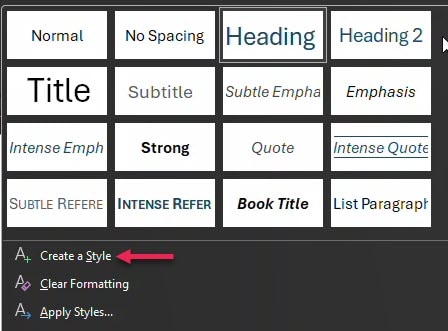
- Name the style something that will help you know it is a first level heading
- Word defaults to Style1
- The word "Style1" now looks like black, Times New Roman, and 12-point size font see Figure 3

Once a style is created, you can select a new chapter heading, right click and select Styles, and the name of the style you created.
Alternate Text for Figures
You will need to add alternate text to figures and schemes to help a screen reader describe the object. When adding a description, you want to be accurate. Please do not repeat what you have already typed in the text, remember a screen reader already reads the text before and after the object. Please be concise when describing your object. Please do not type "image of" or "graphic of". There is a reason you included the figure. There is an action or purpose for the figure. If it is a graph or a chart please start the description with bar chart, line graph, scatter plot, etc. and continue to describe the item.
To add alternate text please do the following
- Right click on the picture and select View Alt Text (see Figure 4 below)
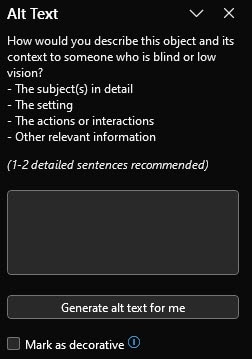
- You should now see a new menu on the right of your screen (See Figure 5)
- Do not select "Generate alt text for me" AI is not accurate
- If it says AI generated alt text, this is not allowed
- Do not "Mark as decorative". You included it in your document for a reason.
- Make sure to save the document so your alt text is saved
Table Summaries
To add a table summary, click on the the table and find the crosshair icon in the upper left hand corner.
- Click on the crosshairs to select the entire table
- Right click on the table to see the menu in Figure 6 below.
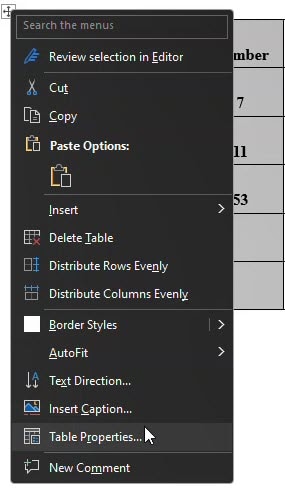
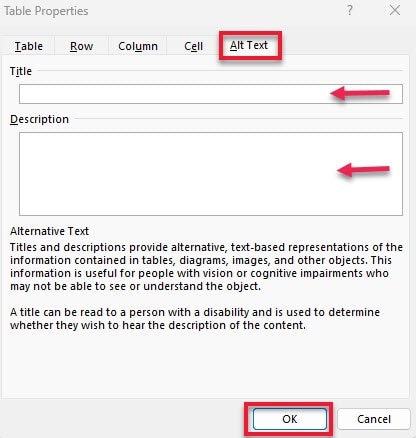
You should now see Figure 7 below.
- Click on the Alt Text tab indicated by the red rectangle (fifth tab on the far right)
- Fill in the Title of the table
- Fill in the Description of the table
- Inlcude the number of columns and the number of rows including the header row
- Click OK
Checking the Document and Correcting Any Errors
To check to make sure accessibility is completed in Micosoft Word, do the following:
- Select the File tab in the main software ribbon (Figure 8 below)

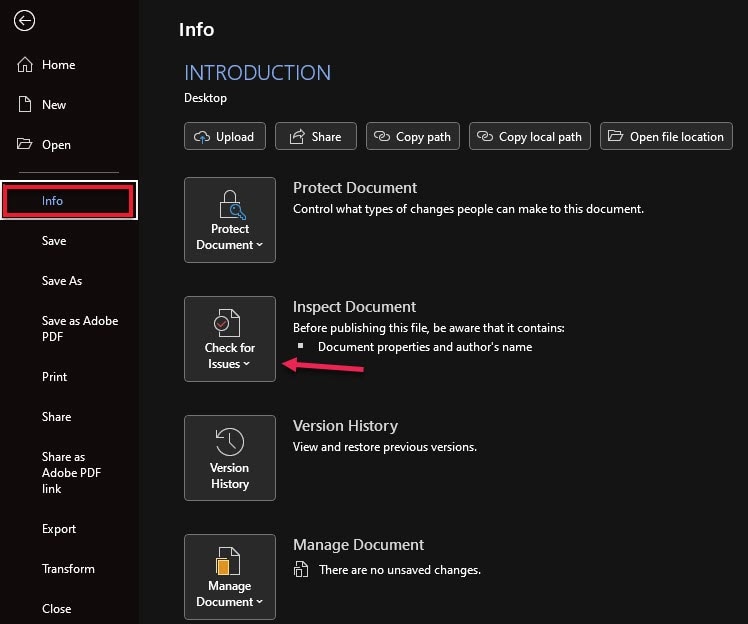
- Click Info indicated on the left in the red rectangle (Figure 9 below)
- Click Check for Issues indicated by the red arrow
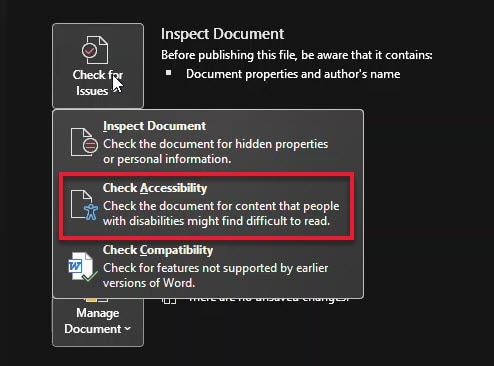
- Click Check Accessibility indcated by the red rectangle in Figure 10 below
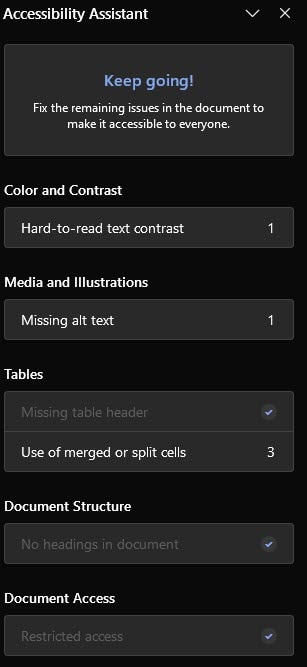
Once you click Check Accessibility, you should see a new menu on the right of your screen. (See Figure 11 below) Depending on the errors in your document, you may have a different list.
- Click on each item and follow the instructions to correct that error
- Remember to Save your document
Updated: 01/22/2026 10:03PM