
LaTeX Tips and Tricks
LaTeX Tips & Tricks
- The template shows a left-justified alignment for the texts, but my file does not look like the template. What should I do?
In the dissertation.tex file look for the following commands and make sure they are not commented out using % before the commands:
\raggedright
\parindent 0.5 in
The \parindent 0.5 in command will make each paragraph as ½ inch indented. Also, these commands should be inserted before the commands for including all chapters. [\input{chapters/chapter1}] - How to truncate the name of a figure/table that appears in the LIST OF FIGURES or LIST OF TABLES?
\caption[]{}
Insert the long caption inside the curly brackets and the truncated caption goes inside the square bracket. Use the truncated caption only if you have a long enough caption under the figure/table. Please make sure you include the part exactly same till the first period from the long caption in the truncated caption. - The Graduate College approved Thesis/Dissertation Handbook states that the theses/dissertation must be written in Times New Roman font, 12-point size. Why does my font show Nimbus Roman No9 L with an 11.96-point size?
Although the characters for Times New Roman and Nimbus Roman No.9 L are not exactly the same, but they are almost identical. The following command has been used in the LaTeX template to get the font:
\usepackage{times}
The default font size in LaTeX using the times package is 10-point size font. When you convert it to PDF, the font becomes 11.96 size. This is because the sizing ratio between LaTeX and Word is approximately 1.25:1.5. Therefore, a 10 or 11-point size in LaTeX might not equal a 12-point size font in the pdf but we are aware of this. - There are certain tables/figures in my document which need to be on their own page.How to make that happen?
According to the Graduate College approved Thesis/Dissertation Handbook, if the tables/figures are over 4 ½ inches in height, including table title/heading, source, andany footnotes or other explanation, they may be given a page of their own after thetextual reference. For any figures/tables to have its own page, use the following command after the figure/table caption and any footnote you might have:
\clearpage
Without using the \clearpage command:
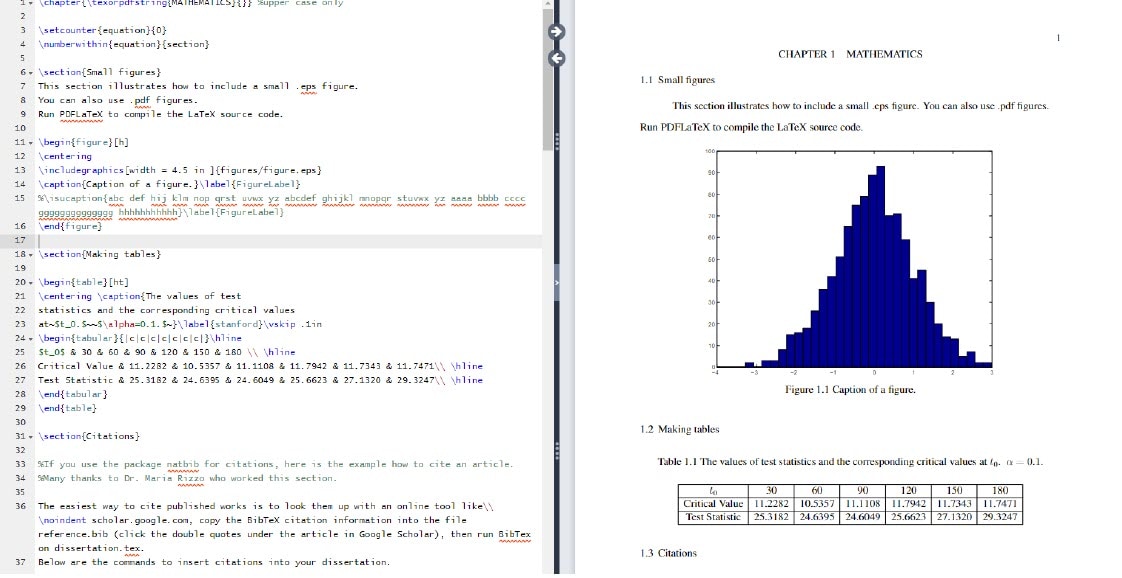
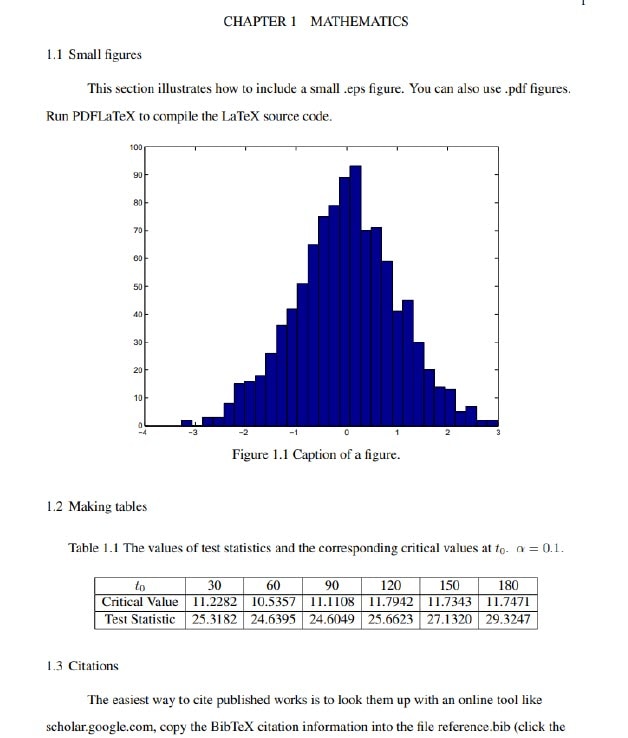
When you use the \clearpage command:
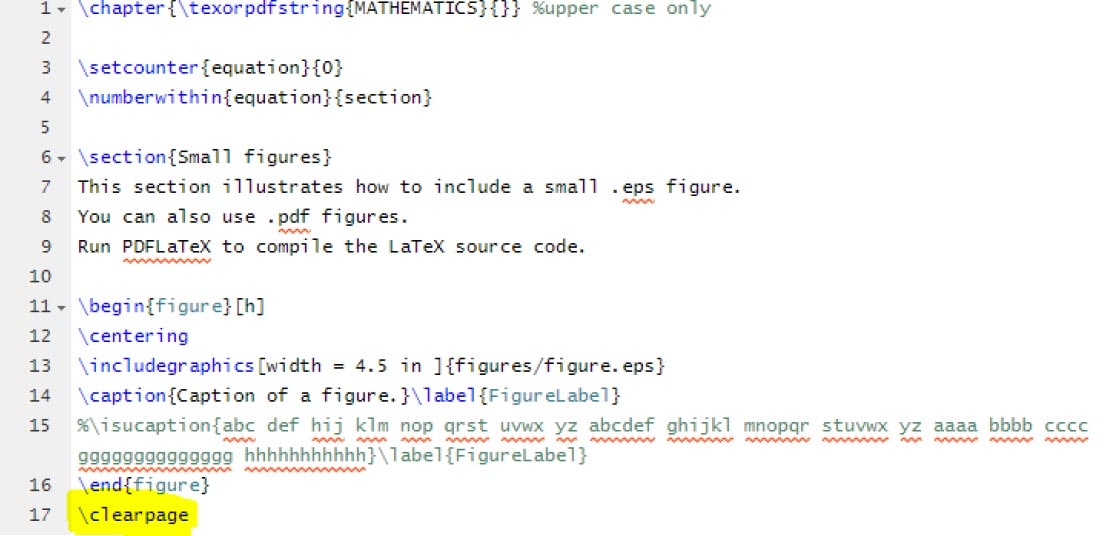
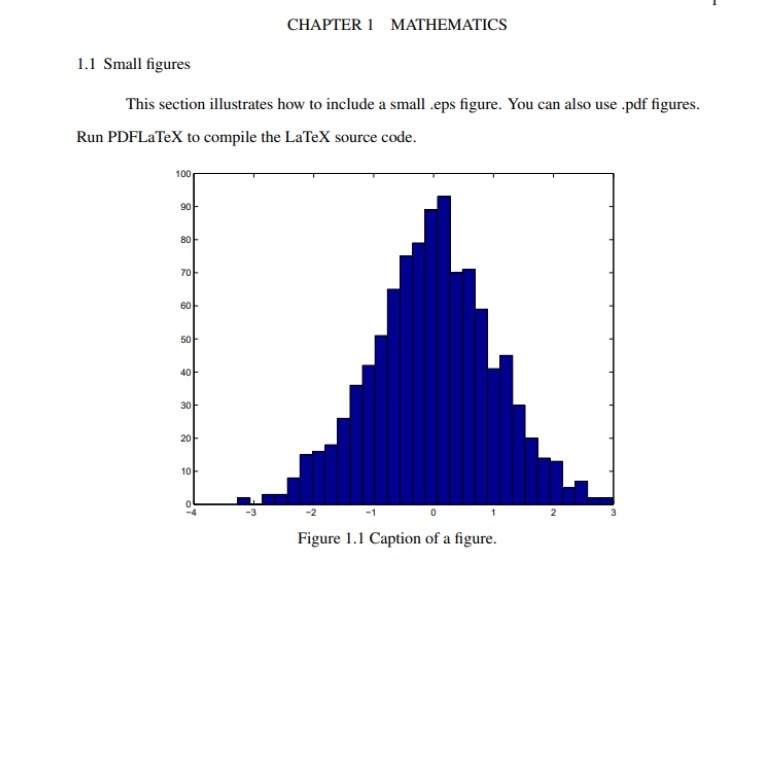
5. How do I import/generate a table in LaTeX?
You can use this website: https://www.tablesgenerator.com/ to generate LaTeX code for a table. Also, if you have a table in Excel that is saved as a csv file, you can import that (File-> Import CSV file-> Choose the file from the directory-> import) and then hit the Generate button. The LaTeX code will be generated under that.
![Tables Generator website showing the LaTeX table editor. At the top-left, the “File” menu is open, and the option “Import CSV file…” is highlighted in yellow. A table with several rows and columns appears in the center area, containing text such as “Silvia’s Notes,” “Topic Approval,” “Manuscript Submi[t],” and entries like “Form Received” and a date. On the left side of the page, a tall vertical advertisement is displayed. At the bottom of the screen, the LaTeX code output for the table is shown, beginning with \\begin{table}[ ] and listing rows with names and table entries.](/content/dam/BGSU/graduate-college/doc/thesis-and-dissertation/figure-5-table-generator.jpg "Figure 5 Table Generator")
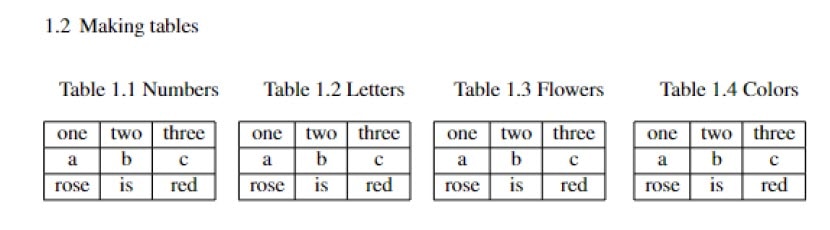
6. My tables are small, and I want them to be side by side instead of one on top of the other. How do I do that?
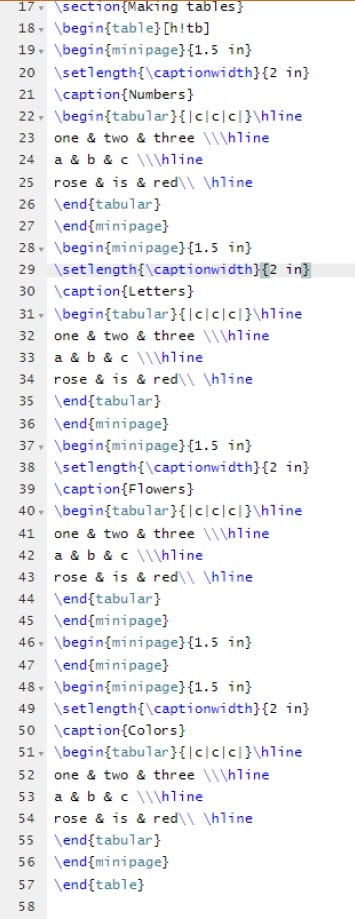
If you want two or more tables to be side by side, then create only one table environment with multiple tables inside of it. For example, the following code will generate four tables across the width of the page.
\section{Making tables}
\begin{table}[h!tb]
\begin{minipage}{1.5 in}
\setlength{\captionwidth}{2 in} \caption{Numbers}
\begin{tabular}{|c|c|c|}\hline one & two & three \\\hline
a & b & c \\\hline
rose & is & red\\ \hline
\end{tabular}
\end{minipage}
\begin{minipage}{1.5 in}
\setlength{\captionwidth}{2 in} \caption{Letters}
\begin{tabular}{|c|c|c|}\hline one & two & three \\\hline
a & b & c \\\hline
rose & is & red\\ \hline
\end{tabular}
\end{minipage}
\begin{minipage}{1.5 in}
\setlength{\captionwidth}{2 in} \caption{Flowers}
\begin{tabular}{|c|c|c|}\hline one & two & three \\\hline
a & b & c \\\hline
rose & is & red\\ \hline
\end{tabular}
\end{minipage}
\begin{minipage}{1.5 in}
\end{minipage}
\begin{minipage}{1.5 in}
\setlength{\captionwidth}{2 in} \caption{Colors}
\begin{tabular}{|c|c|c|}\hline one & two & three \\\hline
a & b & c \\\hline
rose & is & red\\ \hline
\end{tabular}
\end{minipage}
\end{table}
7. How do I comment out multiple lines in overleaf?
Select the chunk of code or lines you want to comment out. Then use Ctrl + / for Windows and command + / for Mac.
8. How to add a note to do something later?
Sometimes we want to add a note so that we can come back later and work on that. Use the following commands before the \begin{document}:
\usepackage{xcolor}
\newcommand\note[1]{\textcolor{red}{#1}\PackageWarning{MyWarnings}{#1}}
Then when you need to add a note, simply use the command \note{} and add your desired note inside the curly brackets. For example:
![A wide screenshot showing two side‑by‑side panels. On the left panel, a LaTeX editor displays several lines of code with line numbers. Certain lines are highlighted in yellow. The highlighted portions include: A \usepackage{xcolor} command and a custom LaTeX command \newcommand\note[1]{\textcolor{red}{#1}} followed by a \PackageWarning{MyWarnings}{#1}. A highlighted \note{Need to modify abstract later.} inside an abstract environment. Other visible LaTeX commands include \subject{Algebra}, \keywords{Algebraic topology; Bayesian analysis}, \begin{document}, \frontmatter, \maketitle, \begin{abstract}, and \input{frontmatter/abstract}. On the right panel, a typeset PDF preview shows an “ABSTRACT” heading centered at the top. Beneath it is body text including a highlighted red line reading: “Need to modify abstract later.” The rest of the abstract displays several paragraphs of placeholder text modeled as a dramatic dialogue between fictional characters.](/content/dam/BGSU/graduate-college/doc/thesis-and-dissertation/figure-8-adding-a-note.jpg "Figure 8 Adding a Note")
9. How to make a landscape orientation in LaTeX?
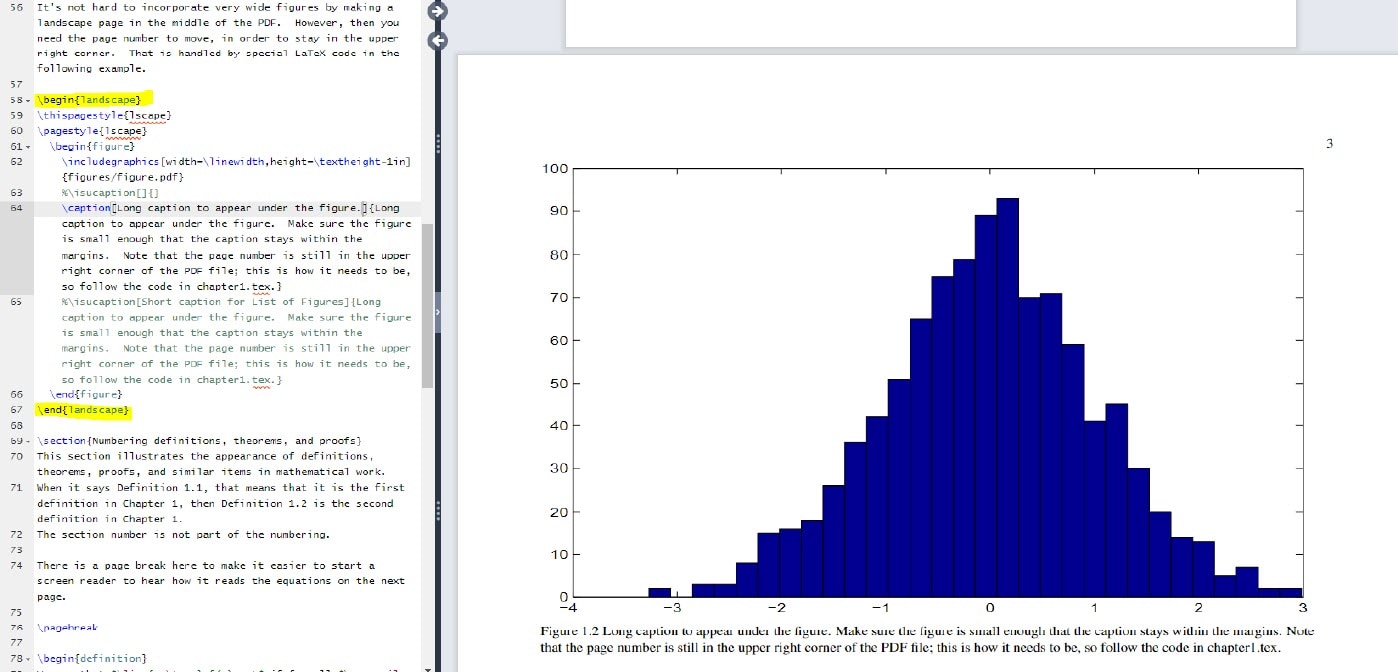
If sizing is a determining factor, tables or figures may require landscape placement on the page. These pages should be rotated so that the text is consistent with the portrait style pages, including the page number. Use the following commands for a landscape orientation in a particular page:
\begin{landscape}
\end{landscape}
Updated: 02/24/2026 08:32PM